
Home/Toolkit
ToolkitThe toolkit
None of these tools take you off the page. Everything here works where your hand already is, because a tool that makes you put the pen down to go and find it is not finished.
Every tool in Mementa Notebook was built against one rule: your hand should be able to stay where it is. On a tablet, the tool dock is always on the far side of the screen from your pen. Every trip to it means lifting your hand, crossing the page, finding the button, and finding your place again. So the tools come to you instead: on the pen's side button, on the back of the pen, in Arc, Mementa's radial pen menu, and in gestures on the page itself.
This page is a tour of the whole toolkit. Each part links to its own page if you want the details.
On this page14 sections
- Four pens: round, fountain, pencil, highlighter
- Erase with the back of your pen
- Side button shortcuts
- Arc: your tools at the tip of your pen
- Lasso select with the Knife
- Convert handwriting to text
- Draw perfect shapes
- Text boxes in any font
- Layers, stacking and alignment
- Color palettes and eyedropper
- Dot grid, lined and custom paper
- Palm rejection and touch gestures
- Keyboard shortcuts and undo
- Questions
Four pens: round, fountain, pencil, highlighter
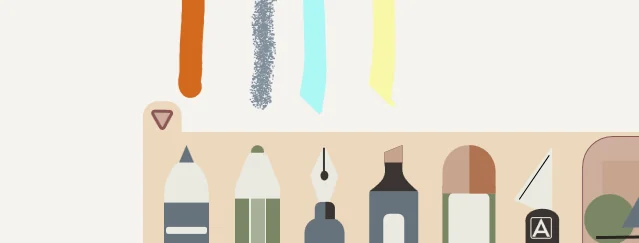
A round tip pen for even handwriting. A fountain pen with an edged nib, so its line takes its width from the direction you write. A pencil that lays graphite into the grain of the paper and darkens on a second pass. A chisel highlighter whose overlapping passes stay flat instead of going muddy. Each one keeps its own color, thickness and opacity, and line width follows your stylus pressure wherever the pen reports it.
Erase with the back of your pen
Turn the pen over and the back tip erases, whatever tool you were holding. A ring shows exactly what will go, even before the tip touches, and a fast scrub catches everything it crosses. The eraser keeps its own size, separate from your pens.
Side button shortcuts
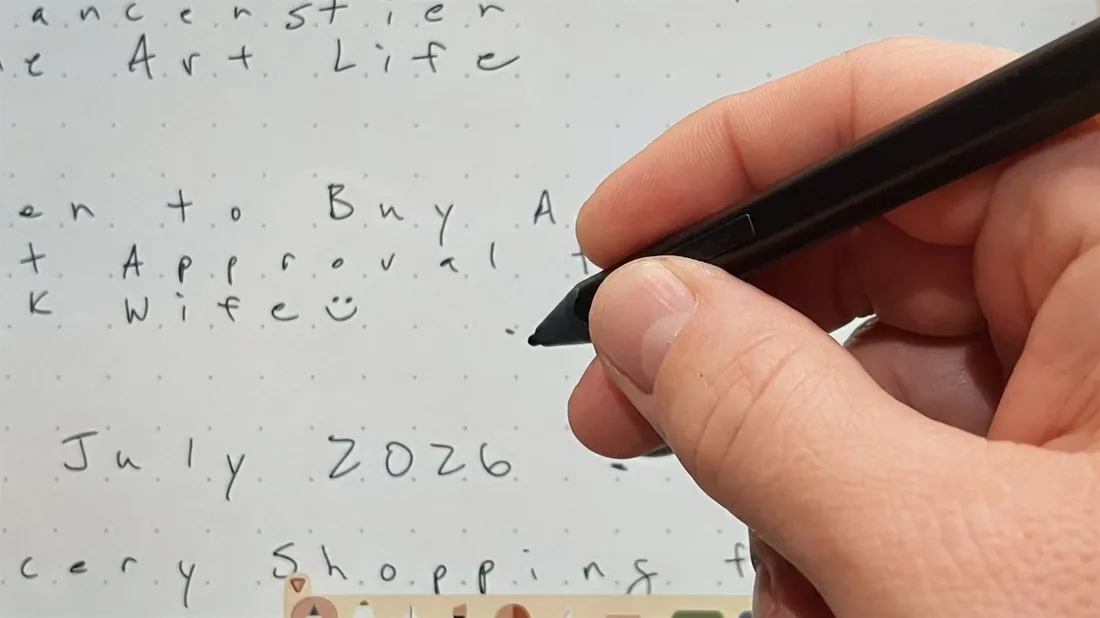
One button, no trips to the dock. Click your pen's side button in the air to jump to the Cursor and back. Double-click it to open Arc. Hold it and drag to select, or hold it while you draw a shape to keep it straight. With something selected, it copies, and stamps copies around the page. On a mouse, a right-click does all of this except open Arc.
Arc: your tools at the tip of your pen
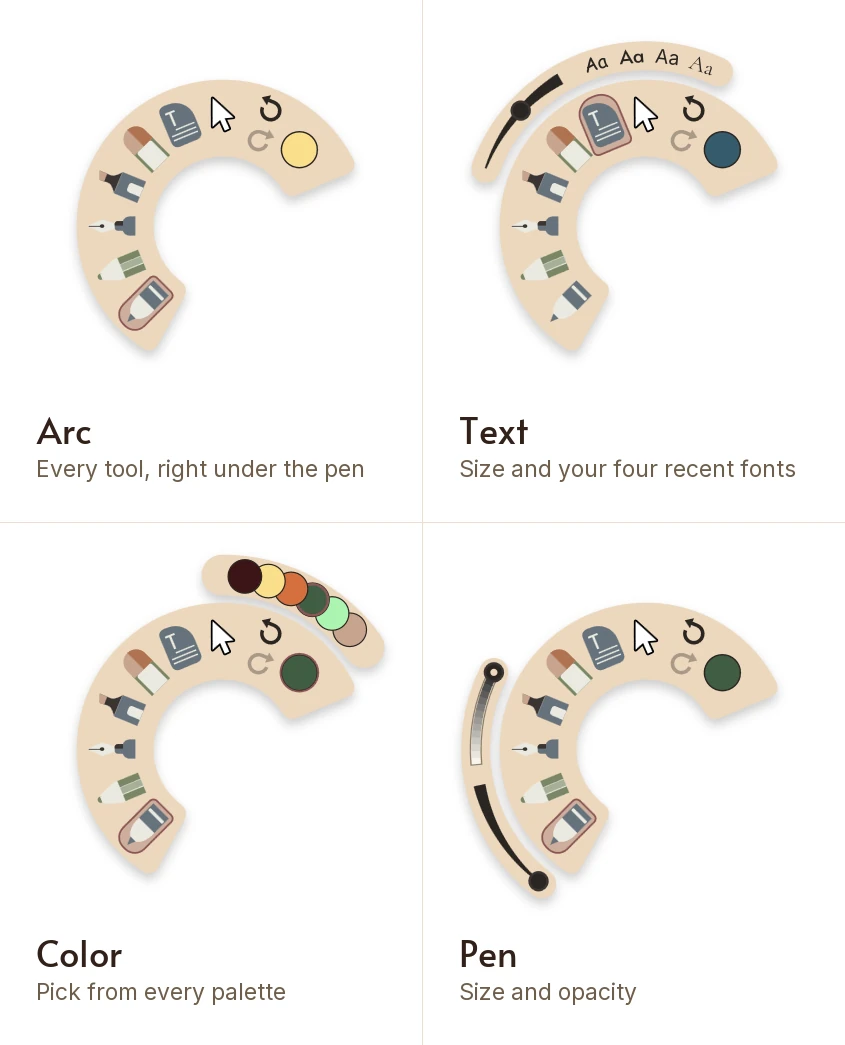
New in Mementa 2.0. Arc is Mementa's radial pen menu, a floating toolbar that opens at your pen tip. Hover above the page and double-click your pen's side button to reach your writing tools, colors, undo and redo. It works the same on every tool. Tap a tool again for its size and opacity, or for text, its size and your four most recent fonts. Tap the page and it closes without leaving a mark. On a pen with a haptic motor, like the Surface Slim Pen 2, the pen buzzes when the tool under it changes.
Lasso select with the Knife
The Knife draws a freeform loop. What happens next depends on what the loop caught:
- Ink. It becomes one selection to move, resize, rotate, copy or delete. See the Knife.
- Ink, then hold the pen still. The handwriting turns into typed text in place. See handwriting to text.
- A photo, with no ink inside. That piece comes away as its own sticker, cut exactly on your line. See cutting photos.
Nothing converts or cuts by accident. A plain loop only ever selects.
Convert handwriting to text
Two ways in. Lasso writing you already did and hold the pen on it, and it becomes text where it sits, in the same size and color. Or open a text box and write beside it, and each word flows in as typed text while the ink fades. Recognition runs on your own PC, learns the words you write most, and remembers your corrections. One undo always gives you your handwriting back.
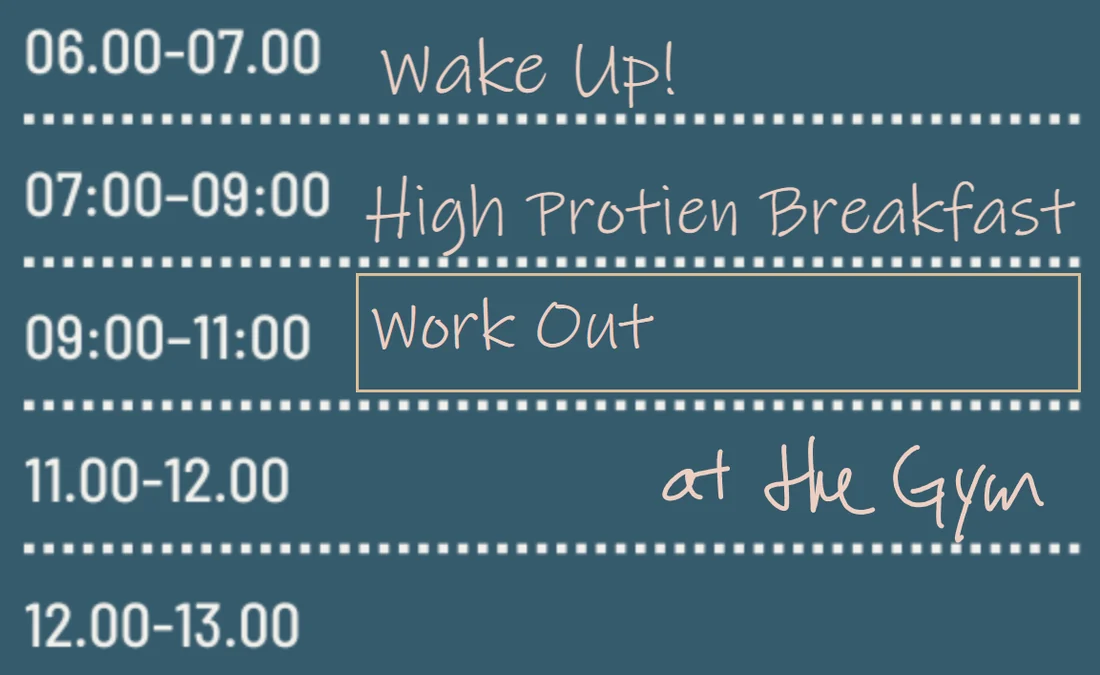
And if you only want to find your notes later, you do not have to convert anything: handwriting search reads your notes in the background.
How handwriting to text works or Scribble
Draw perfect shapes
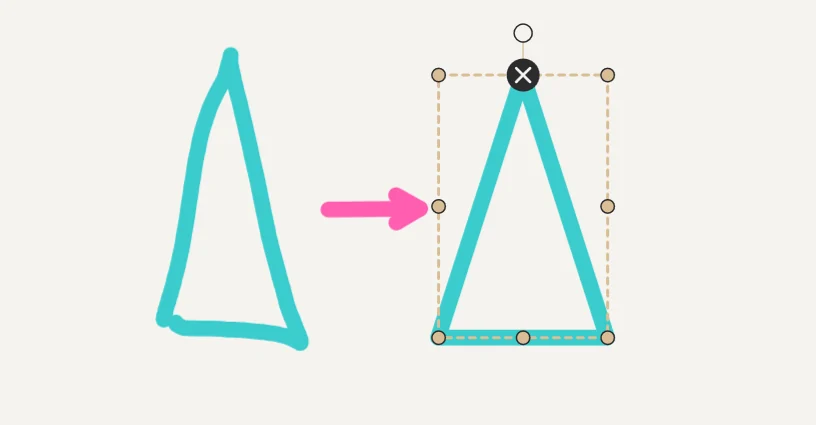
Sketch a rough shape with any pen and hold the pen still for a moment: QuickShape settles it into a clean one, from rectangles and ellipses to triangles, stars, lines and arrows. Or reach for the shape tools for an exact shape with its own fill, stroke, thickness, opacity and rounded corners. Either way it stays a real shape you can resize and recolor later.
How QuickShape works or the shape tools
Text boxes in any font
Typed text sits on the page beside your handwriting and stickers, in any font on your PC, with sizes, styles, alignment and bullets. Turn a text box to any angle and it stays editable and searchable.
Layers, stacking and alignment
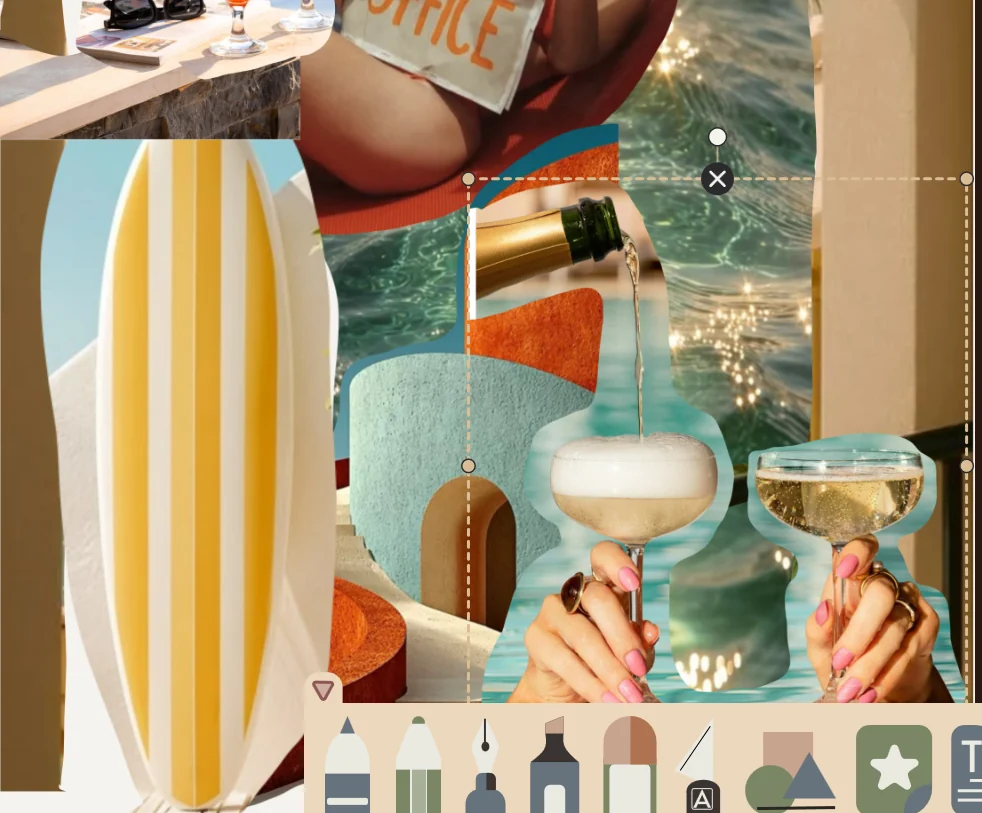
A word buried under a photo is hard to reach. In Mementa, the Arrange list shows every object on the page as a row in stacking order. Tap a row to select it, drag it to restack it, or tap the same spot on the page twice to reach whatever is underneath.
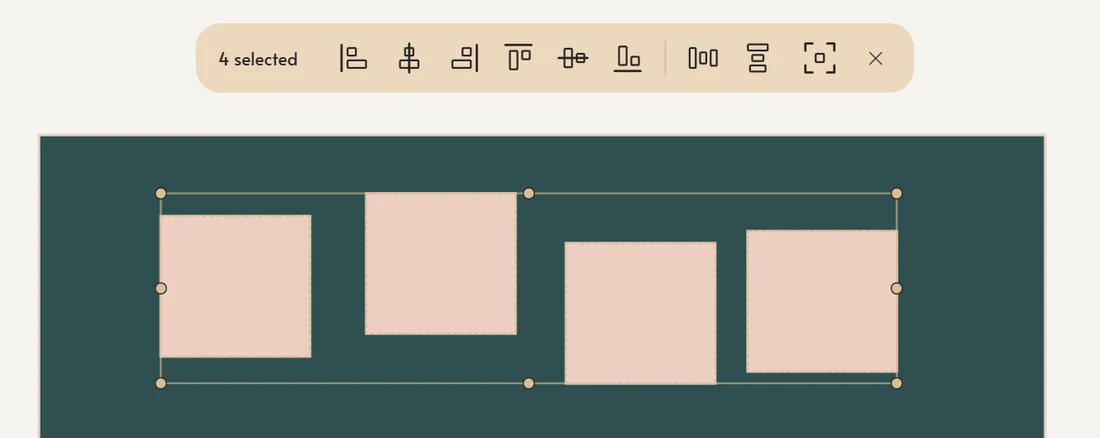
Select several things to line them up or space them evenly in one move, or merge them into one object that moves together and comes apart again whenever you like. Layers keep whole levels of the page apart: lock the template, hide the decorations, write on top.
How Arrange works, Select Multiple, merge or layers
Color palettes and eyedropper
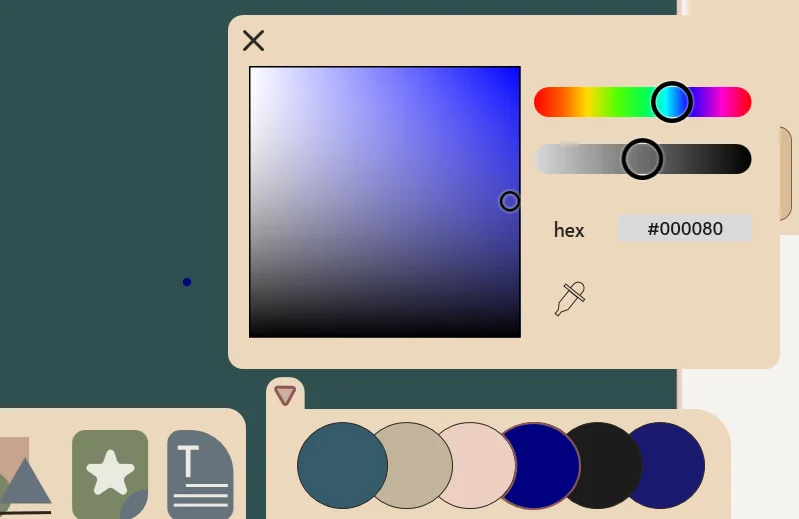
Twenty one ready made palettes, every swatch editable, and each notebook keeps its own. Pick by spectrum or hex, or take a color straight off a photo with the eyedropper. Every pen remembers its own color, so a blue fountain pen and a yellow highlighter stay that way while you switch between them.
How palettes work or the color picker
Dot grid, lined and custom paper
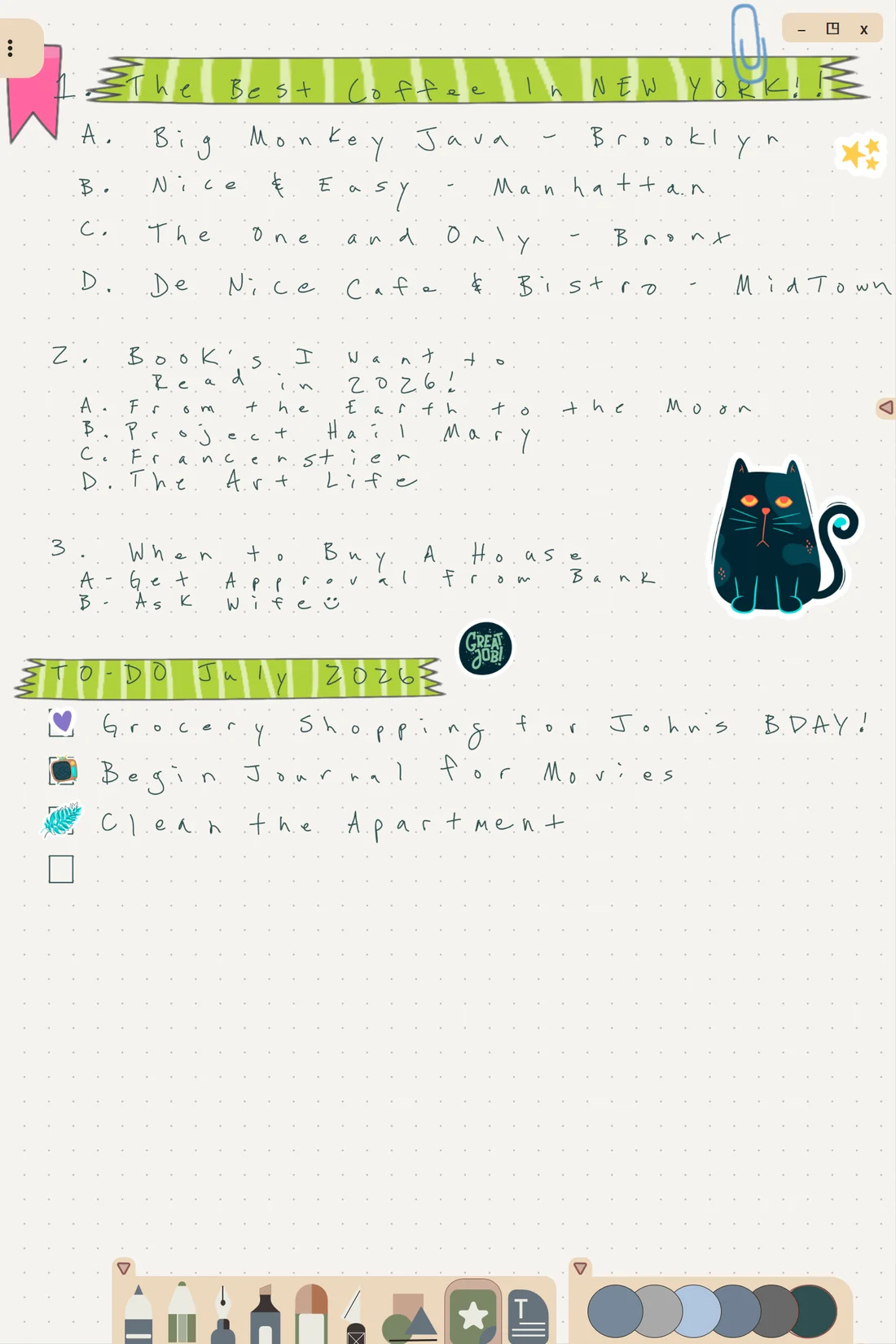
Dot grid, lined, blank or a yellow legal pad, on one page or every page. Bring your own planner page, worksheet or stationery scan as a background, or save any page you designed as a template and reuse it in every notebook.
How page backgrounds work or templates
Palm rejection and touch gestures
The pen writes. A finger pans, zooms and turns pages. A resting palm leaves no mark and does not drag the page. A mouse draws with a left-click and uses a right-click as the side button. And the pen scrolls every list in the app, so you never have to put it down.
Keyboard shortcuts and undo
- Ctrl F opens search from the shelf.
- Ctrl C and Ctrl V copy and paste under your pointer.
- Shift keeps a rectangle square, an ellipse round, or a line at a clean angle.
Undo and redo cover drawing, erasing, moving and resizing, object edits, backgrounds and layer changes, and they stay quick on a long, busy page.
Questions
Which tools does Mementa have?
Four pens (round, fountain, pencil and highlighter), an eraser, the Knife for selecting, converting and cutting, shapes and QuickShape, text boxes, the Arrange list, layers, palettes and a color picker, plus Arc and the side button shortcuts that bring them to your pen.
Do I need a pen to use the toolkit?
A pen is what Mementa is built for, but a mouse works too: a left-click draws and selects, and a right-click stands in for the side button. Arc is the one tool that needs a pen.
Can I customize the tools?
Each pen keeps its own color, size and opacity, the fountain pen and pencil have pressure dials, and palettes are editable per notebook. Arc and the side button have fixed jobs, so they work the same everywhere.
Is there a brush engine for painting?
No. Mementa's pens are made for writing, drawing and journaling on a page, not for digital painting.
Try it yourself
$4.99 once, and Mementa is yours. Every update included, and no subscription, ever.
Get it on the Microsoft Store