
Design once, use everywhere
A weekly spread you drew by hand. A recipe frame. A lettering guide. A habit tracker with your own headings. If you make it once, you should not have to make it again. In Mementa Notebook, any page can become a template.
Save a page as a template
You save a template from the E-Reader, the reading view, because that is where the Export panel lives. Turn to the page you want to keep, then:
- Tap the open book, Read (E-Reader), in the top bar. It is there in Edit mode and in Book mode.

- In the E-Reader, tap Export, the arrow rising out of a tray.
- At the bottom of the panel, under Template, tap Save this page as a template.
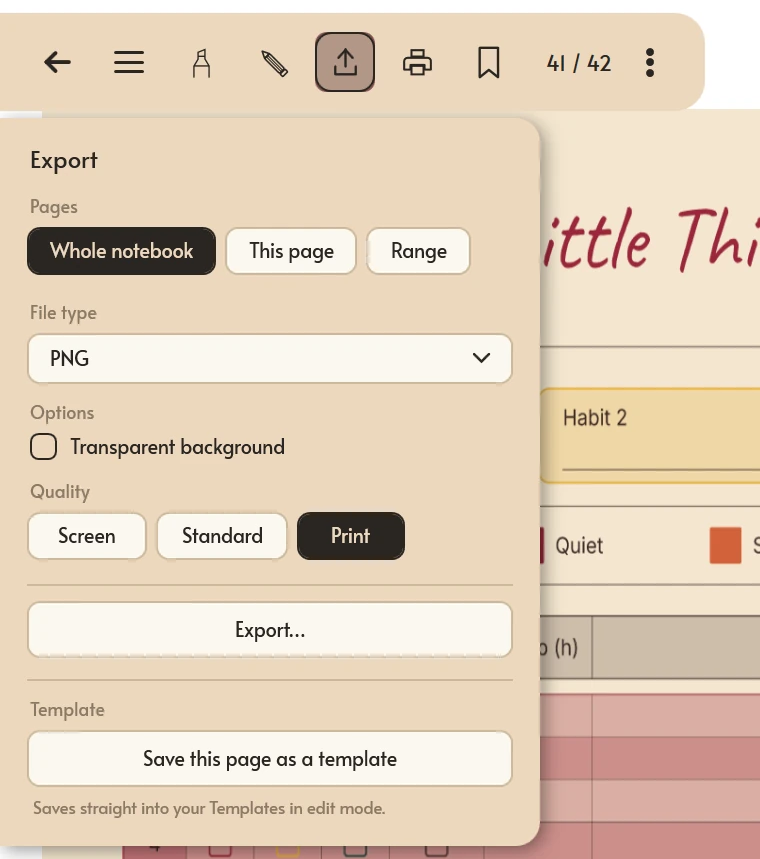
The button saves the page on screen, at the notebook's page size, whatever you chose above it. Pages, file type and quality only matter to Export. From then on it is one of your backgrounds.
Find it in Edit mode
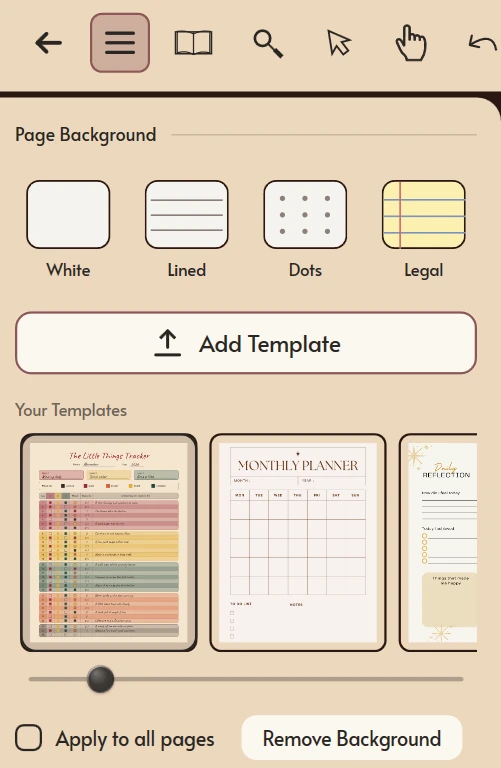
Back in Edit mode, tap the menu button, the three lines at the top left. Under Page Background, below White, Lined, Dots and Legal, Your Templates holds every page you have saved and every file you have imported. Tap one and it goes behind your writing.
Import your own
Add Template, in the same panel, imports an image or a PDF as a template: planner pages, worksheets, stationery scans, music staff, graph paper. Import it once and every notebook can use it.
Stored once, shared by every notebook
Templates live in one shared library, not inside each notebook. Ten notebooks using the same planner page store it once. Importing the same file twice does not make a second copy, and the templates you use most move toward the front of the picker.
When you share a notebook as a portable file, only the templates it actually uses travel with it.
Use it on one page or all of them
A template you tap goes behind the page you are on. Tick Apply to all pages first and it goes behind every page in the notebook instead, and Remove Background then clears every page at once.

Put a template on its own locked layer and you can write over it freely without ever moving it. Templates work like any other background.
At a glance
- Save the current page straight into the Templates library
- Templates are shared across every notebook, stored once
- Import an image or a PDF as a reusable template
Questions
How do I save a page as a template?
Tap Read (E-Reader) in the top bar, tap Export, and at the bottom of the panel tap Save this page as a template. The page on screen goes straight into Your Templates, which you find in Edit mode under Page Background.
Why is Save as template in the E-Reader?
It sits in the Export panel, and the Export panel lives in the E-Reader. Open it with the open book button from Edit mode or Book mode.
Can I import a planner page as a template?
Yes. In Edit mode, open Page Background and tap Add Template. Pick an image or a PDF and it becomes a template every notebook can use.
Is there a template store?
No store, but free templates, with stickers, colors and fonts that match, are on the Free page. You can also bring your own: any image or PDF you import with Add Template becomes one.
Try it yourself
$4.99 once, and Mementa is yours. Every update included, and no subscription, ever.
Get it on the Microsoft Store