
Home/Sticker Book
Sticker BookThe Sticker Book
Every sticker you love, finally in one place. Peel a pack once and every sticker on it is ready in every notebook you open after that, organized your way and never cropped by hand again.
On this page12 sections
- Your digital sticker library
- Use the stickers you already own
- Peel a sticker sheet into separate stickers
- Fix the cuts and remove white backgrounds
- PNG, SVG and PDF sticker files
- Organize stickers with chapters and tags
- Show different stickers in each notebook
- How to use digital stickers on a page
- Make your own digital stickers
- Turn a photo into a sticker
- Export, share and print your stickers
- Questions
Your digital sticker library
In most apps, stickers are an afterthought: a short strip of clip art, or an image you hunt down, import, use once, and hunt down again next time. Collectors know the real problem. You own hundreds of stickers, maybe thousands, spread across sheets, PDFs and folders, and using any one of them is a chore.
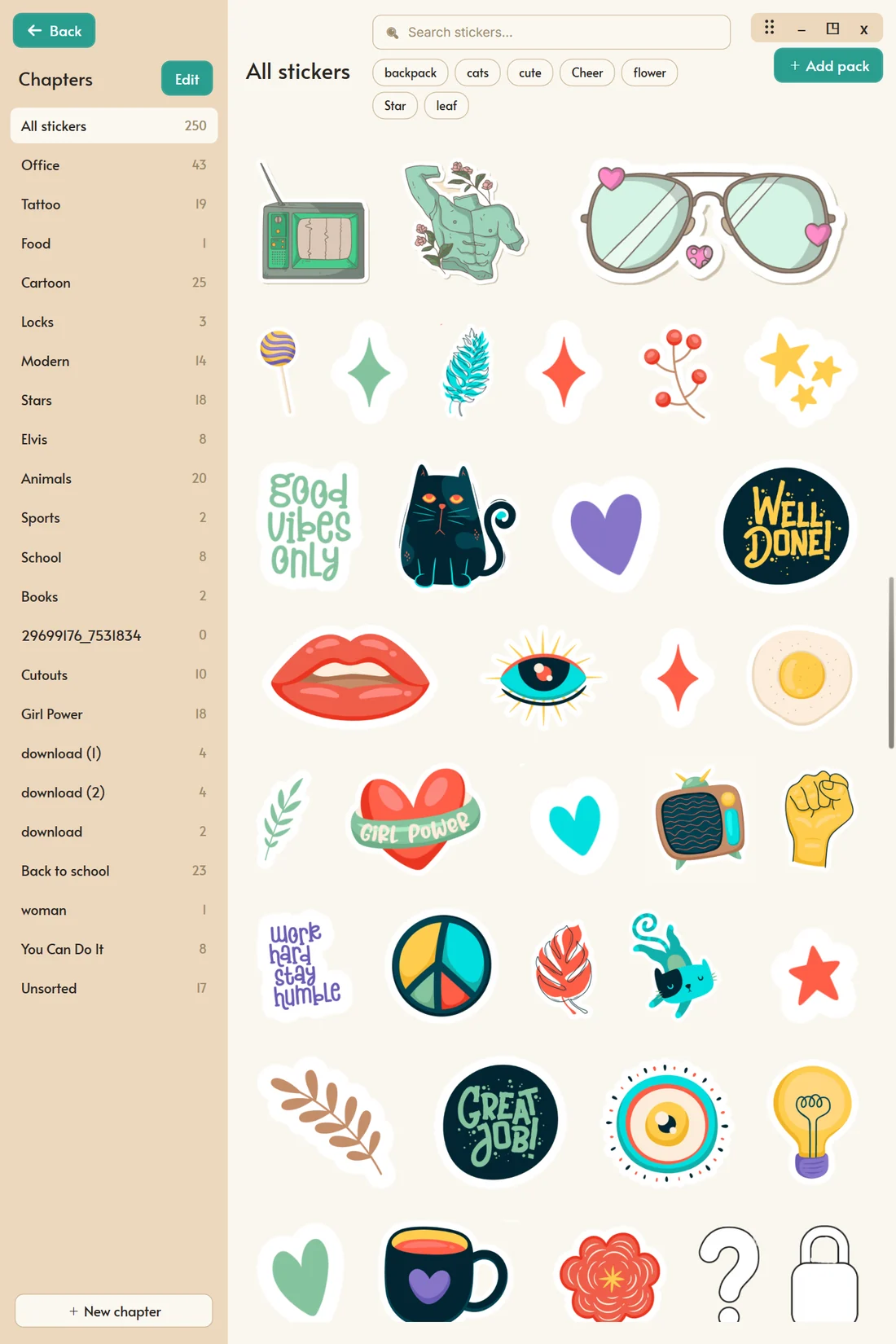
In Mementa Notebook, the Sticker Book is a book of its own, pinned to your shelf beside your notebooks. Open it and every sticker you own is laid out in one gallery, each at its natural shape, so a tall character, a wide banner and a tiny icon are all easy to recognize. It feels less like a file manager and more like opening a collection.
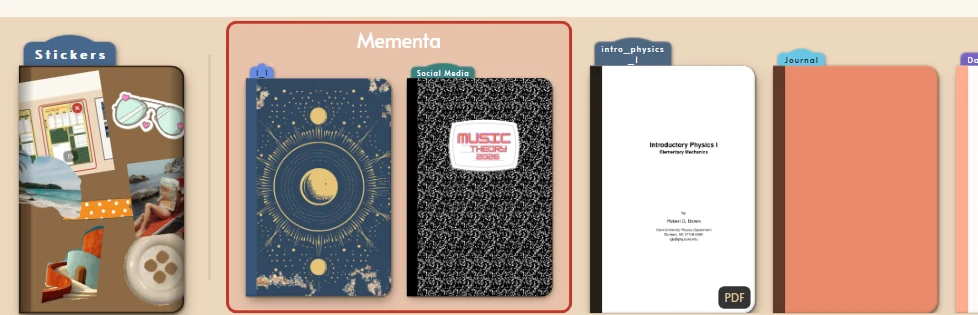
To open it, look for the cover marked Stickers in the shelf row along the bottom of the carousel on your home screen.
And it is shared. Import a sticker once, and every notebook you have, and every notebook you will make, can use it.
Use the stickers you already own
Mementa does not come with sticker packs, and there is no sticker store inside it. The Sticker Book is made for the stickers that are already yours:
- Packs you own. Digital sticker sheets you bought from independent artists, or collected over the years.
- Your own drawings. Anything you draw on a page can become a sticker. See make a sticker.
- Your photos. Cut a face, a building or a pet out of a photo with the Knife. See cut stickers from photos.
- Single images. Photos, tickets, scans and labels, added straight from the sticker drawer.
Peel a sticker sheet into separate stickers
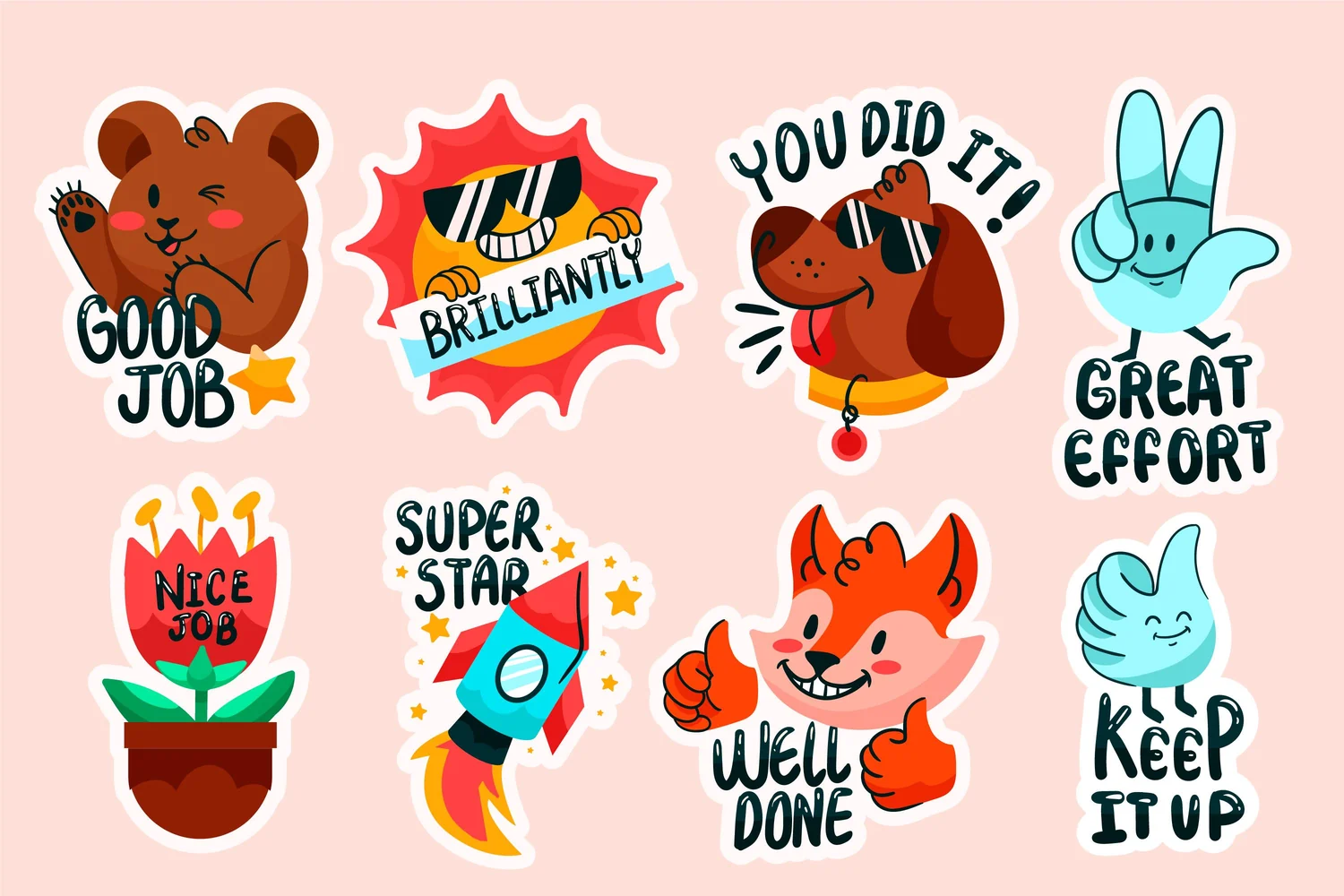
Digital sticker packs are almost always sold as one big sheet: a PNG with dozens of designs on a page, or a PDF with a sheet on every page. Import one into most apps and you get one giant rectangle. In Mementa, you peel it. Here is one sheet, all the way from the file to a journal page.
- Open the Sticker Book from your shelf and choose Add pack.
- Select one or more sticker sheet images, SVGs or PDFs. A multi page PDF is treated as a run of sheets.
- Review what Mementa found. It draws a box around every sticker it detects.
- Choose a chapter, add tags if you like, and select Peel.
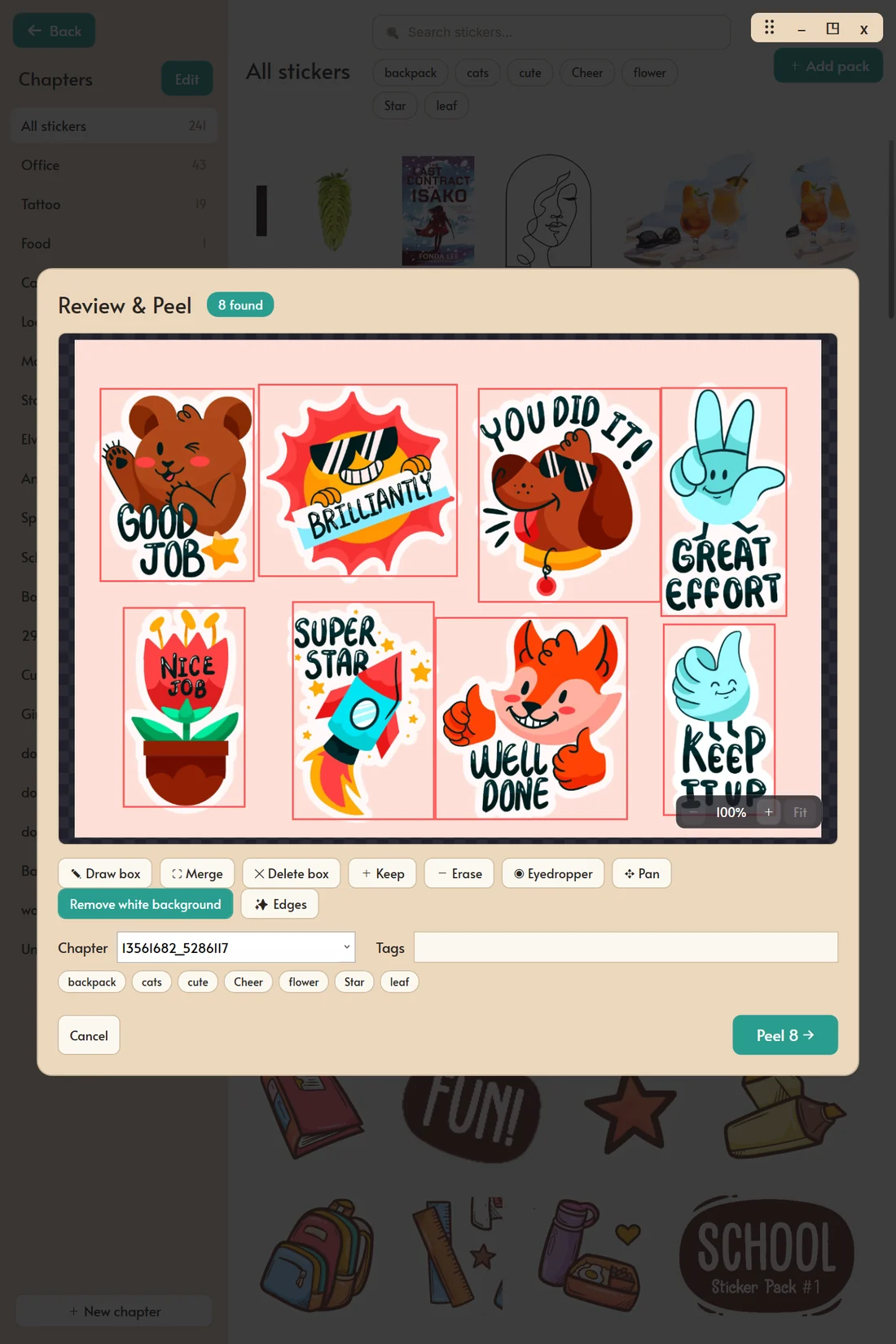
Every accepted piece becomes its own transparent sticker in your library. A sheet of sixty stickers becomes sixty stickers, in about the time it takes to check the boxes.
Read more about sticker peeling
Fix the cuts and remove white backgrounds
Detection is the start of the job, not a decision you are stuck with. The review screen has a tool for everything a sheet can get wrong:
- Draw box adds a sticker the detector missed.
- Merge joins pieces that belong to one design, like a word and the banner behind it.
- Delete box removes something that is not a sticker, like a logo or a page number.
- Remove white turns the sheet's background into transparency.
- Keep brush paints back details that should stay, like a thin line or a pale highlight.
- Erase brush forces unwanted areas to become transparent. Red marks show what it will clear.
- Eyedropper clears a patch of one color with a single tap, stopping at the ink line around it: the gap inside a letter, the hole in a doughnut, the sky inside a wreath.
- Pan moves around the sheet when you have zoomed in close.
- Tolerance sets how closely a pixel must match the background before it goes.
- Feather softens a hard cut edge so the sticker sits naturally on a page.
- Despill takes away the pale halo a white background leaves around a cutout.
- Edges preview zooms in on one sticker so you can judge the edge before you save the whole pack.
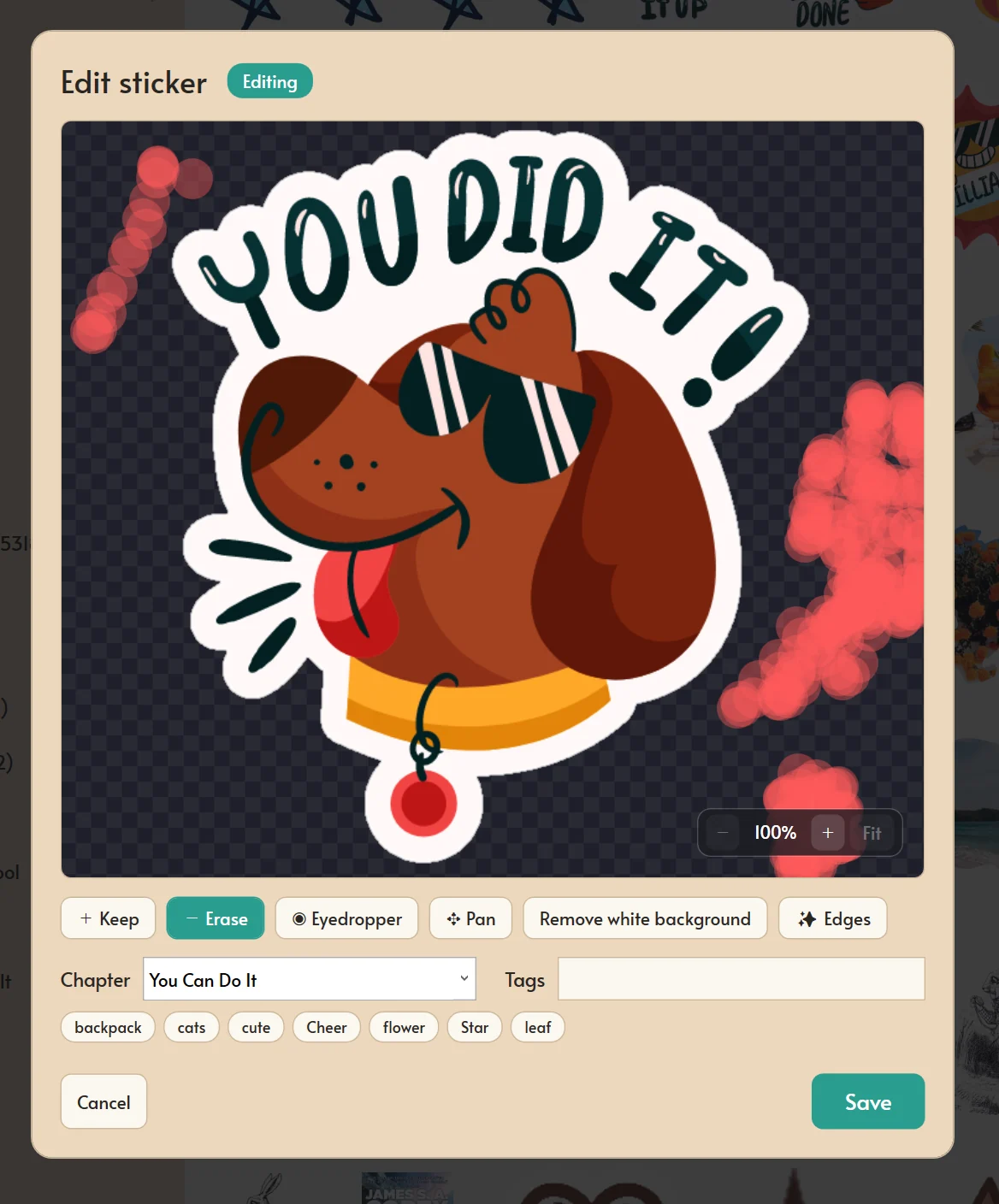
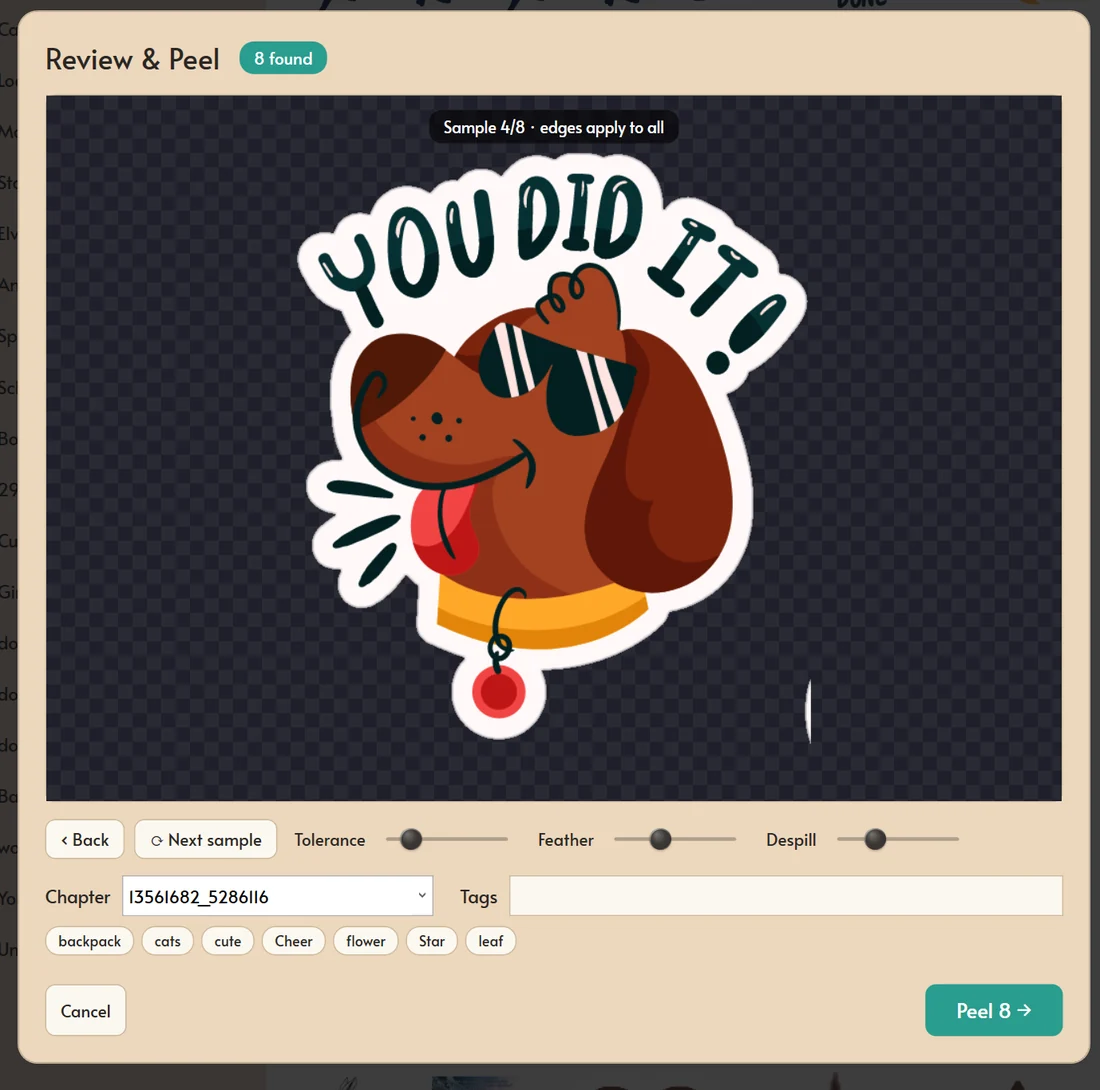
These matter most for hand drawn packs, scanned paper, soft edges, and art whose background is not perfectly even. In Edges, set Tolerance, Feather and Despill on one sample, step through the rest with Next sample, and the settings apply to every sticker on the sheet.
Change your mind later
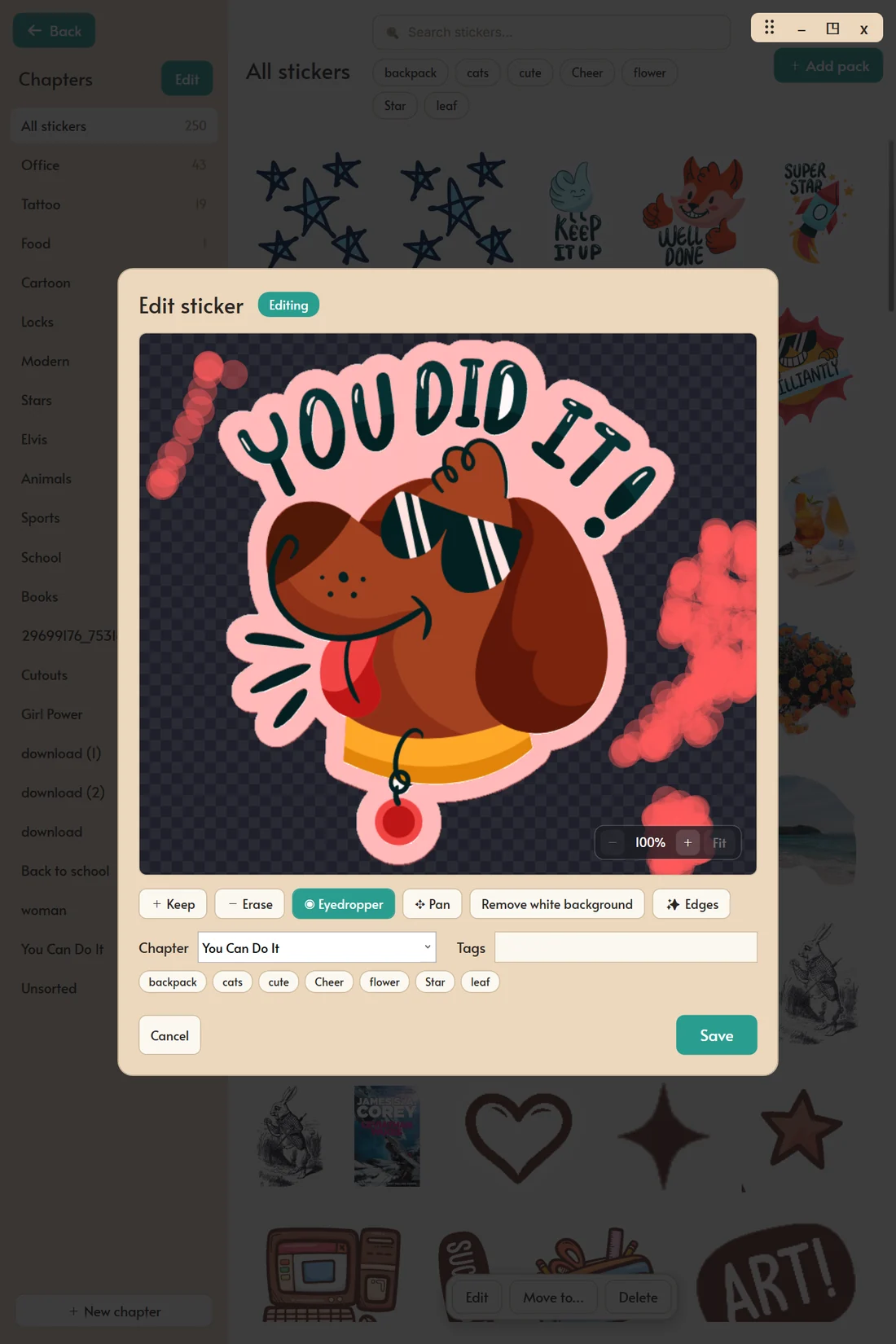
A peeled sticker is never locked in. Tap it in the Sticker Book and choose Edit from the bar that appears along the bottom, and it reopens in Edit sticker with the same brushes, the Eyedropper and the edge tools, plus its chapter and tags. Stickers that came from a PDF are the one exception.
Read more about cutout refinement
How it finds each sticker (no AI)
Peeling happens entirely on your own PC. It is ordinary image processing, not a cloud service and not an AI model, so it gives the same result every time and works with no connection.
For a sheet with a transparent background, Mementa uses that transparency to tell art from empty space. For a sheet on paper, it works out the background color from the edges of the sheet, then finds every separate shape on top of it, joins pieces that belong together, and ignores specks too small to be stickers. A sheet photographed on a desk has two backgrounds, the desk and the paper, and the detector can tell them apart.
When it cuts each sticker out, the background is cleared from the outside edge inward. That is why the white of an eye, a highlight on a cup, or white lettering inside a design stays white, instead of every white pixel on the sheet being deleted. Each sticker is then trimmed and saved as a standalone transparent PNG, its own file, not a crop of the big sheet.
PNG, SVG and PDF sticker files
- Images: PNG, JPG and other common image files
- SVG vector stickers
- PDF sheets, including multi page PDFs
Identical stickers are recognized and stored once, so importing the same pack twice does not double your library. One thing to know: stickers that came from a PDF cannot be reopened for edge editing later. If you think you will want to adjust edges, import the sheet as an image instead.
Organize stickers with chapters and tags
A big collection needs more than a scrolling grid. The Sticker Book gives you a structure that stays easy for a small collection and sane for a huge one:
- Chapters are a sticker's main home: Travel, Birthdays, Botanicals, School.
- Groups add one level above chapters: Seasons, holding Spring, Summer, Autumn and Winter.
- Tags connect a sticker to many ideas at once: flower, border, label, blue.
- Unsorted catches everything you have not filed yet, so nothing is ever lost.
- Search matches names and tags.
Chapters show how many stickers they hold, and you can rename, reorder, nest, collapse and delete them. Delete a group and its chapters return to the top level. Delete a chapter and its stickers move to Unsorted instead of disappearing.
Edit mode turns the gallery into a workspace: select a batch of stickers and move, tag or delete them together. The tags you use most are suggested first, so tagging a hundred stickers is quick.
Read more about organizing stickers
Sticker organization ideas
There is no right way, but a few patterns work well:
- By project. A chapter per notebook theme: Travel Journal, Recipe Book, Baby Book.
- By season. A Seasons group with a chapter for each, plus a Holidays group.
- By type. Chapters for Borders, Labels, Washi, Icons, Letters and Frames, which suits a planner.
- By artist. A chapter per pack or creator, and tags for subject and color.
Tags are what make any of these work at scale. Tag by color and you can find a blue sticker in any chapter in seconds.
Show different stickers in each notebook
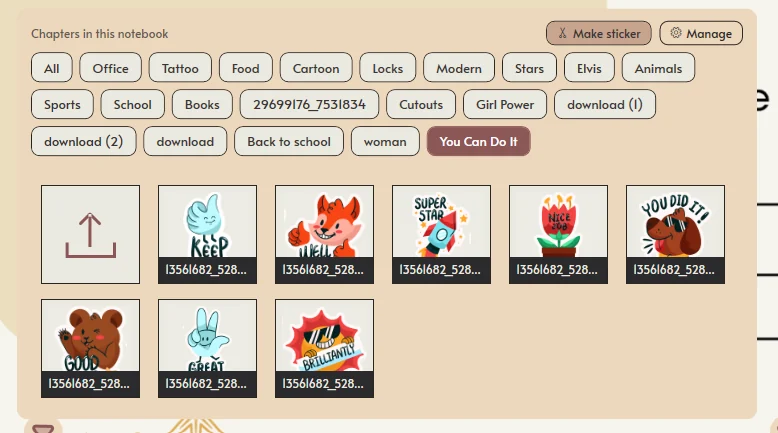
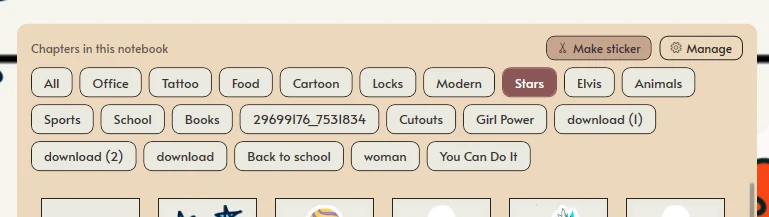
Your Sticker Book is shared, but a travel journal does not need your Christmas stickers in its drawer. Each notebook chooses which chapters show in its sticker drawer. The travel journal loads Maps, Tickets and Landmarks. The recipe book loads Ingredients, Kitchen and Labels. The collection stays whole, and each notebook stays focused. Leave the choice empty and every chapter is there.
Inside the drawer, chapter and tag chips narrow things further, and the add tile brings in new images without leaving the page.
How to use digital stickers on a page
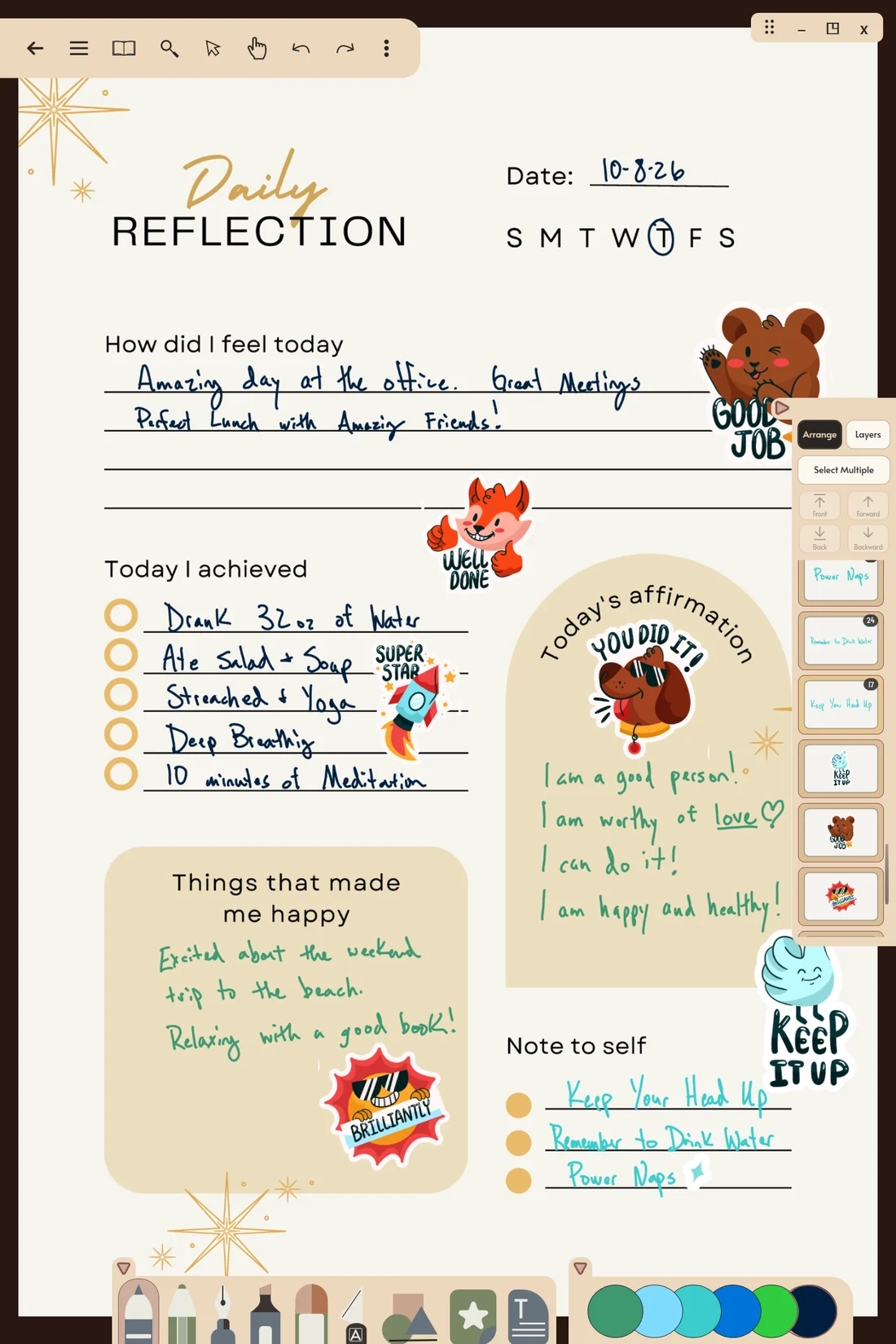
Tap a sticker to place it, or drag it exactly where you want it. Once it lands, it is a real page element. You can:
- move, resize and rotate it
- copy it and stamp copies around the page
- change its transparency, so it sits faintly behind your writing or sharp on top
- double-tap to crop it without losing the rest. See non destructive crop.
- tuck it under or over other things with the Arrange list
Make your own digital stickers
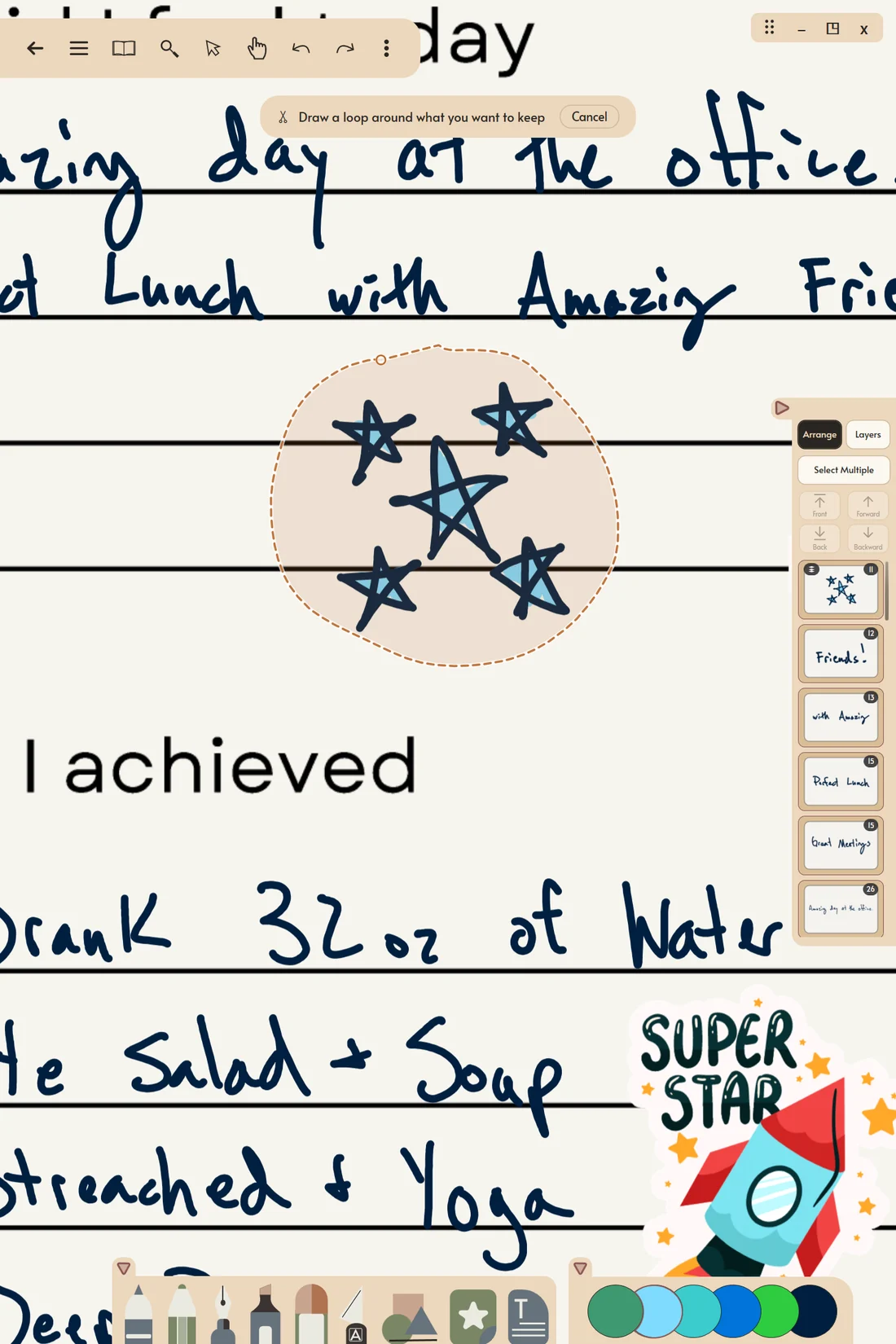
You do not need to buy a pack to grow your collection. Draw something you like, a doodle, a hand lettered word, a little map, then open the sticker drawer, tap Make sticker, and draw a loop around it. A short Cutout review opens with the edge tools, you pick a chapter, and it is in your library.
Make sticker is the red button at the top of the sticker pop up.
Mementa redraws the sticker fresh from your ink rather than grabbing the screen, so it stays sharp when you place it larger later. Every visible layer inside the loop is captured, bottom to top. Locked layers count, hidden ones do not. Over time this becomes a collection only you have.
Read more about making stickers
Turn a photo into a sticker
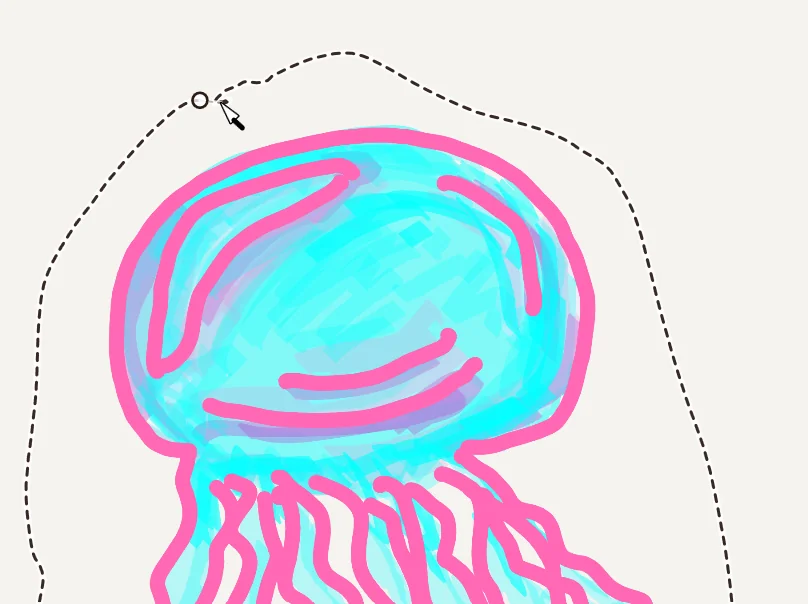
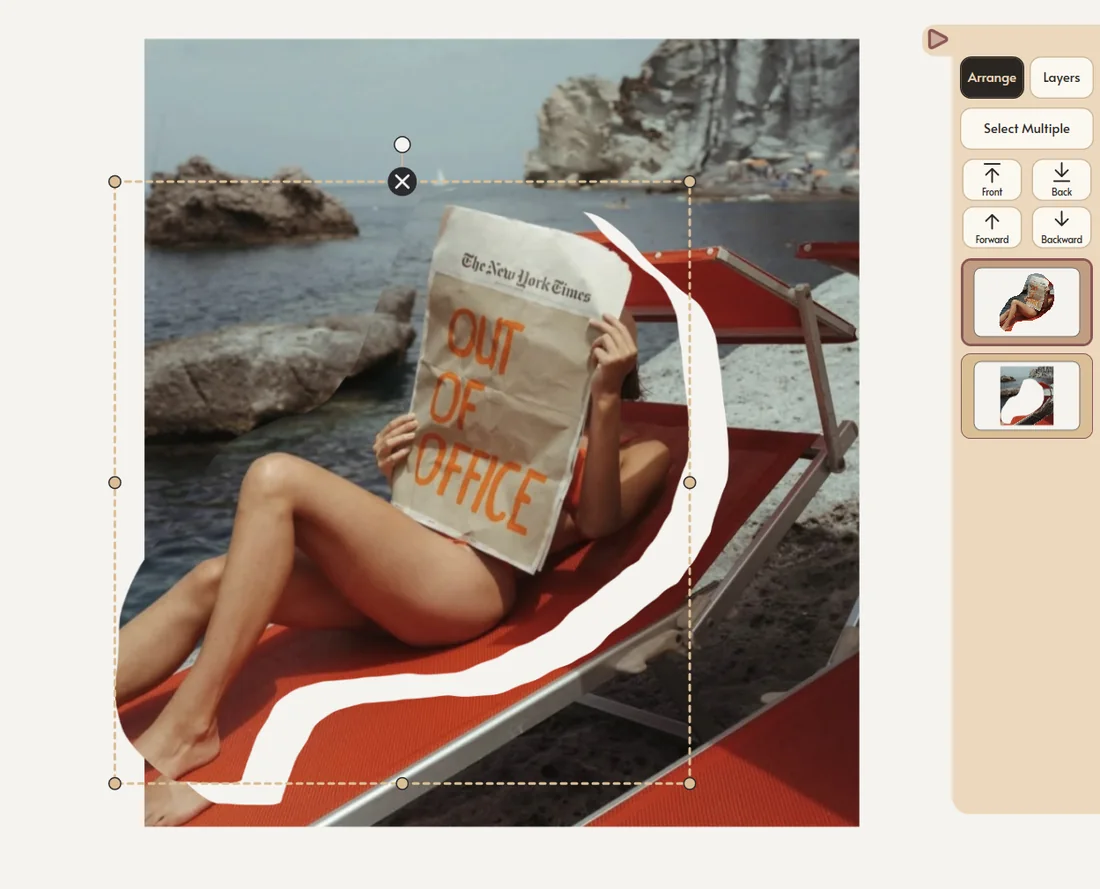
Draw a loop on a photo with the Knife, with no ink inside the loop, and that piece comes away as its own sticker, cut exactly on the line you drew. The photo stays on the page with a hole in that shape. Cut as many times as you like: the original is never saved again, so the picture never gets worse.
Read more about cutting photos
Export, share and print your stickers
Export a finished cutout as a standalone transparent PNG and use it outside Mementa: in another design, a video, or a sheet you print on sticker paper.
Share a notebook with its stickers
Share a notebook as one portable .notebook file and the stickers it actually uses travel inside it, so it opens complete on another PC. The rest of your collection stays private, and a big Sticker Book never makes a shared notebook huge.
Read more about portable notebooks
Stickers in a printed book
Stickers print as part of the page, like everything else on it. For the sharpest result in a printed book, use the highest resolution packs you can, and avoid stretching a small sticker far past its original size.
Sticker artwork shown in these screenshots is designed by Magnific and appears for illustration only. It is not included in the app. You bring your own sticker packs.
Questions
Does Mementa come with stickers?
No. The Sticker Book is made for stickers you already own, packs you buy from artists, stickers you draw yourself, and pieces you cut from your own photos.
Can I use digital stickers I bought online?
Yes, if they come as images (PNG or JPG), SVG or PDF, which is how most digital sticker packs are sold. Sticker files saved in another app's own format will not open.
How many stickers can the Sticker Book hold?
It is built for thousands. Chapters, groups, tags and search keep a large collection findable, and identical stickers are stored once.
Do stickers take up space in every notebook?
No. Each sticker is stored once in your library, however many notebooks use it.
How do I back up my Sticker Book?
It lives in the Mementa folder in your Windows user folder, alongside your notebooks. Back that folder up and your stickers come with it.
Does peeling stickers need the internet?
No. Peeling, organizing and placing stickers all happen on your own PC.
Try it yourself
$4.99 once, and Mementa is yours. Every update included, and no subscription, ever.
Get it on the Microsoft Store