
Scrapbooking by hand, on a tablet
Most digital scrapbooking software for Windows is built for a mouse: drag a photo into a template slot, pick a stock embellishment, type a caption. It works, but it does not feel like scrapbooking. Scrapbooking is cutting, arranging, tucking one thing under another, and writing on the page in your own hand.
Mementa Notebook is built for a pen on a tablet. You collect, cut, arrange and write directly on the page, and the page is already shaped like the book it will become.
Start with the right shape
Pick Square when you start the notebook. It is the photo book shape, at 7.5 or 8.5 inches, and every page is laid out for print from the first one. See page shapes.
Collect your pieces
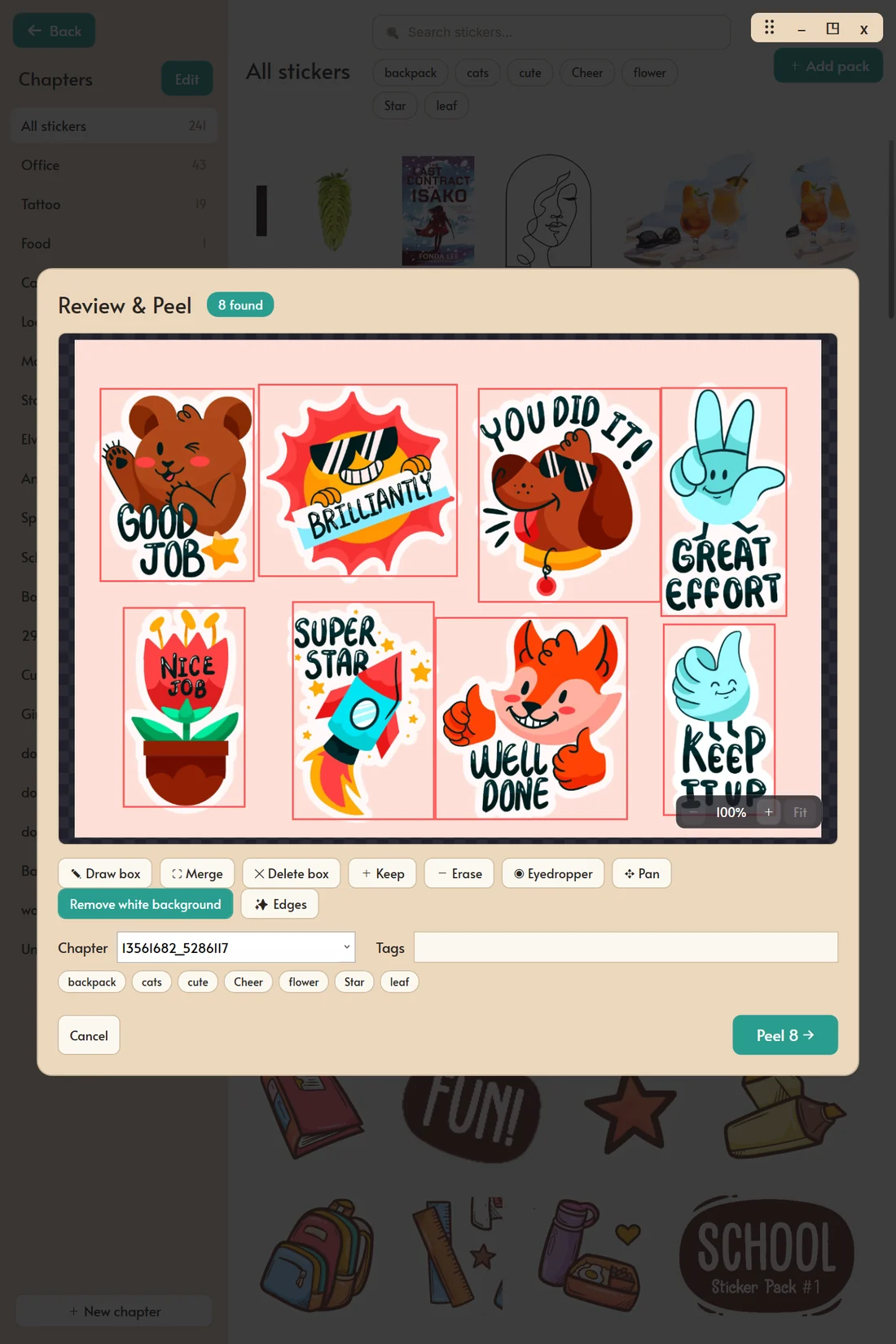
- Sticker sheets. Drop a digital sticker sheet or a multi page PDF into the Sticker Book and Mementa finds the stickers on it, lifts each one off its white background, and keeps them as separate stickers. See sticker peeling.
- Photos. Open the sticker drawer in a notebook and tap the add tile to bring in photos from your PC, several at once. Or copy a picture in another app and paste it onto the page.
- Your own drawings. Draw a doodle, a banner or a label, loop around it, and it becomes a sticker you can use on every page. See make a sticker.
Everything lands in one Sticker Book, organized into chapters and tags, and each scrapbook can load just the chapters it needs: Beach, Tickets, Maps for a summer trip.
Cut and crop
Double-tap a photo to crop it, and pan or zoom the picture inside the frame. Nothing is thrown away, so you can reframe it later.
To cut a shape out of a photo, a face, a building, the dog, draw a loop around it with the Knife. That piece comes away as its own sticker, cut exactly on your line, and the photo is never degraded however many times you cut it. See cutting photos.
Layer and arrange
A scrapbook page is built in levels: paper, then photos, then embellishments, then writing.
- Layers keep those levels apart. Lock the background paper so nothing moves it. See layers.
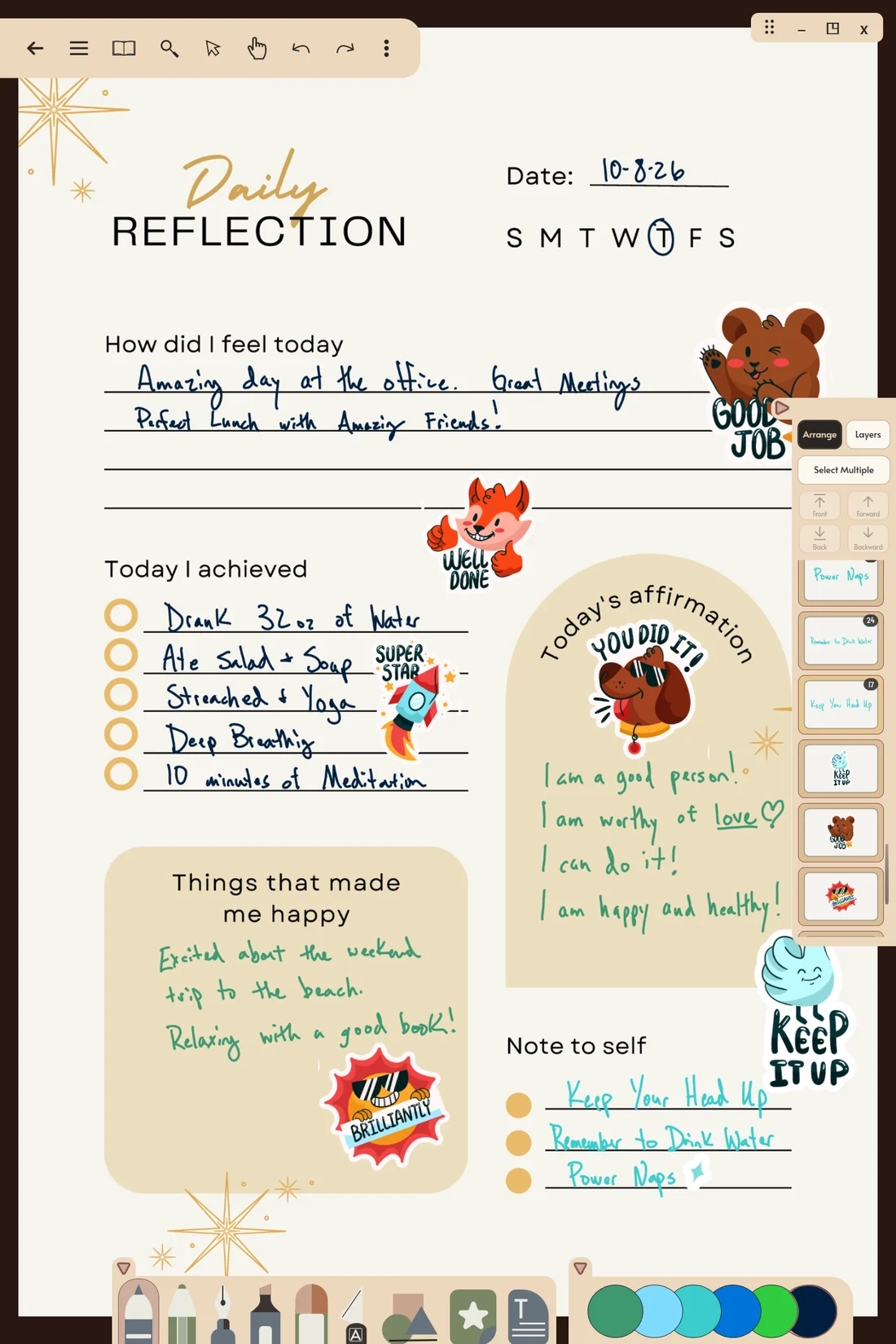
- Arrange lists everything on the page in stacking order. Tuck a photo under a sticker, or bring a caption to the front, by dragging its row. See the Arrange list.
- Select Multiple lines photos up and spaces them evenly in one move. See align and space.
- Merge a photo, its frame and its label into one object that moves and turns together, and unmerge it any time without flattening anything. See merge.
Sticker artwork shown on this page is designed by Magnific and appears for illustration only. It is not included in the app. You bring your own sticker packs.
Write on the page
Captions are where a scrapbook becomes yours. Write them with the fountain pen or the pencil, right on the page, beside the photo. Pull a color straight out of a photo with the eyedropper so the ink matches the picture. If you would rather type, text boxes rotate to any angle and stay editable.
Check it, then print it
Turn on the print guides to keep faces and words inside the safe area, and look through the spreads in Book Mode. Then order it: hardcover or softcover, premium color ink on 80# coated paper, the photo book stock. See printed books.
Questions
What is the best digital scrapbooking software for Windows?
If you want to scrapbook with a pen on a Windows tablet, cutting, layering and writing by hand, Mementa was built for that, and it prints the finished book. If you want ready made templates you fill with a mouse, template based photo book software suits that better.
Do I need to buy sticker packs?
No. You can make stickers from your own drawings and cut them from your photos. Mementa does not come with sticker packs, but it is made to use the ones you own or buy from artists.
Can I use sticker packs I bought for other apps?
Yes, if they come as images (PNG or JPG), SVG or PDF, which is how most digital sticker packs are sold. Sticker files saved in another app's own format will not open.
Can I print my digital scrapbook as a photo book?
Yes. Order a softcover or hardcover copy from inside Mementa, printed and shipped to 215 countries. One copy is fine.
Can I scrapbook without a pen?
Yes, with a mouse. A left-click draws and selects, and a right-click stands in for the pen's side button. A pen is what makes the writing and the cutting feel natural.
Try it yourself
$4.99 once, and Mementa is yours. Every update included, and no subscription, ever.
Get it on the Microsoft Store