
Search for a note-taking app for Windows and most of what comes back is built for typing. That works until the lecture has a diagram, a formula or an arrow from one idea to another. Then you want a pen. This guide is about taking notes by hand on a Windows tablet or 2-in-1, for class or for work, and getting them back when you need them.
On this page12 sections
Notes are for using later
A journal is something you keep. Notes are something you use. You write them while someone else is talking, so they have to be fast. You often write them on top of something you were handed: slides, a handout, a worksheet. And you come back to them with a question, usually the week of the exam or five minutes before the meeting.
So taking notes asks different things of an app than keeping a journal does:
- keep up with your hand, with no hunting for tools
- let you write on the slides and handouts you were given
- keep each class or project in its own notebook
- find one word you wrote by hand weeks ago
- turn writing into typed text when it has to be typed
- hand the notes on to someone else
The rest of this guide takes those one at a time.
Keep up while someone is talking
Rest your hand on the glass and write. Your pen writes, a hand resting on the page never leaves a mark, and turning the pen over erases a mistake without changing tools. See palm rejection and the eraser.
What saves the most time is the side button on your pen. Click it in the air to reach the Cursor, move what you just wrote, and click again to keep writing. Double-click it and Arc, Mementa's radial pen menu, opens your tools, colors, undo and redo right under the tip, so your hand never crosses the page to a toolbar while the lecture moves on. See side button shortcuts.
For the writing itself there is a round-tip pen for fast, even lines, a highlighter that stays flat when you go over a line twice, and a pencil for sketches. Draw a rough box or an arrow and lift the pen, and QuickShape snaps it clean, so a diagram drawn in a hurry still reads. See the pens.
Write on the slides
Most lectures come with slides, and most meetings come with a handout. Add the PDF to your shelf, open it, tap the pencil and choose a book shape, and the deck becomes one of your notebooks with every slide underneath your writing. Circle what matters, add what the speaker said that the slide did not, and leave yourself questions in the margin. Your original file is never changed. See page backgrounds.
The words printed on the slides come across too, as long as they are real text in the PDF and not a picture of text. That means they show up in search beside your own handwriting.
Links inside a PDF do not jump. Mementa shows every page, but tapping a link or a tab in the PDF does nothing. Move between pages with swipes, the page rail and Book Mode.
One notebook for every class
Start a notebook for each class or project and choose its paper: ruled for lectures, dot grid for lists and diagrams, blank for math and sketches, a yellow legal pad for meetings. Then drag one notebook onto another and they become a stack, so a whole semester sits together on your shelf. See stacks and page backgrounds.
If you take notes in a set layout, such as Cornell notes with a cue column and a summary box, draw it once or import it as a PDF and save it as a template. Then apply it to each new page as you go.
The readings can live there too. PDFs and ebooks sit on the same shelf as your notebooks, so the reading for a class is right next to the notes on it. See the library.
Find it before the exam
This is where handwritten notes usually fail. On paper, or in an app that treats ink as a picture, finding one word means flipping through every page. Mementa reads your handwriting in the background, on your own PC, so you can search every notebook at once for a word you wrote by hand. Each result shows a thumbnail of the page, the line that matched and the page number, and opens right on it.
The same search covers anything you typed and the words inside your PDFs and ebooks, so one search finds the slide and the note you wrote beside it. You never have to convert your notes to text first. See handwriting search.
Turn notes into typed text
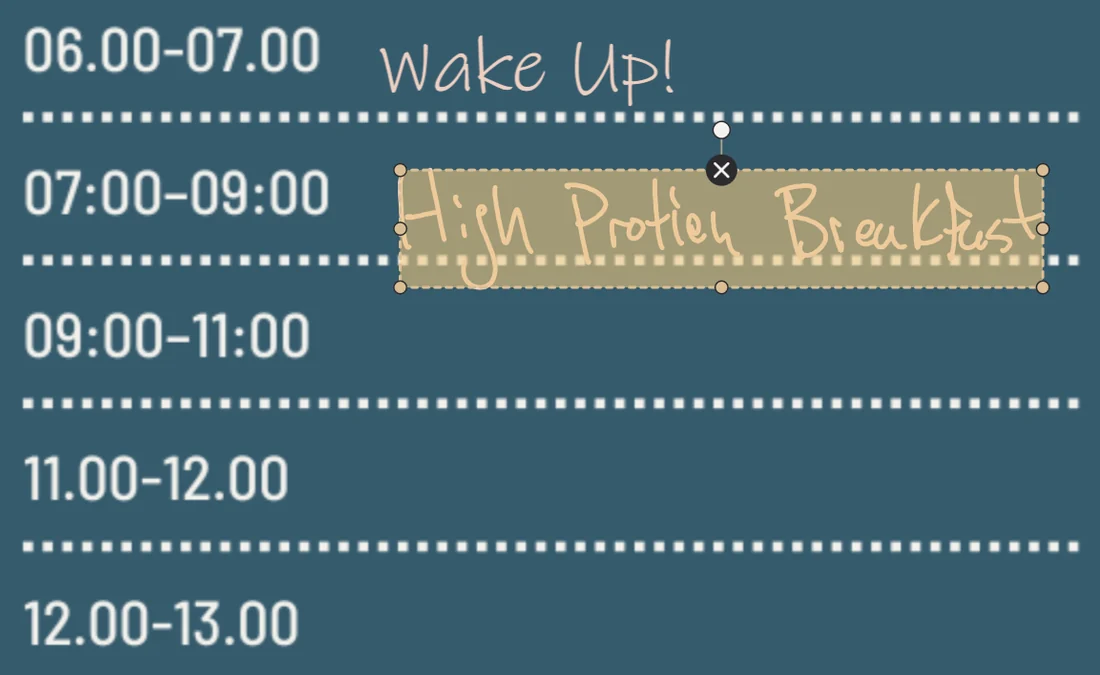
Some notes have to be typed: a summary for a study group, a list of action items after a meeting. Lasso the writing with the Knife and hold the pen still, and it becomes typed text in place, in a font you choose, still editable. One undo brings your handwriting back. Recognition runs on your own device, and nothing is uploaded. See handwriting to text.
To type as you go instead, open a text box and write beside it with the pen, and your words type themselves into it. See Scribble.
Send them on
Export a page, a range of pages or the whole notebook as a PDF to send to a classmate, hand in, or print. If they use Mementa too, send the whole notebook as one file, with every page and background inside it. See export and a notebook in one file.
Never lose a lecture
Mementa saves as you write, so there is no save button to forget when class ends. A notebook you delete goes to a recycle bin you can restore it from, and older snapshots open as safe copies. Everything stays in a folder on your own PC, with no account. See auto save and snapshots and an offline notebook app.
Made for a pen, fine with a mouse
Mementa runs on Windows 11, on ARM64 and x64. It is made for a pen: a Surface Pro, a 2-in-1 laptop, or any pen Windows recognizes as a pen. A mouse works too. A left-click draws and selects, and a right-click stands in for the pen's side button. See the Surface Pro guide.
One payment
$4.99 once, and Mementa is yours. Every update included, and no subscription, ever. See a note-taking app you buy once.
Start your first class notebook
- Choose Start a new notebook, pick a shape and a cover, and name it after the class.
- Set the paper to ruled or dot grid, on every page.
- If the class has slides, add the PDF to your shelf and tap the pencil to write on it.
- Write. Click the side button to move something, and double-click it for Arc.
- Before the exam, search for the word you need.
Questions
Is there a handwritten notes app for Windows?
Yes. Mementa Notebook is a note-taking app for Windows 11 made for writing by hand with a pen or stylus, on tablets, 2-in-1 laptops and PCs.
Is it good for students?
It was built around what students do with notes: a notebook for every class, writing on lecture slides, and searching all of it before an exam. It costs $4.99 once, with no subscription.
Can I write on my lecture slides?
Yes. Add the PDF to your shelf, open it and tap the pencil, and every slide becomes a page you can write on. Links inside the PDF do not jump.
Can it search my handwritten notes?
Yes. It searches every notebook at once, including the words you wrote by hand and the text inside your PDFs. Recognition runs on your own PC.
Can it record audio with my notes?
No. Mementa does not record audio.
Does it sync with my phone or another device?
No. Your notes stay on your PC. Export them as a PDF, or send a whole notebook as one file.
Will it work on my school laptop?
If the laptop runs Windows 11 and you can install apps from the Microsoft Store, yes. It runs on ARM64 and x64, and a mouse works if there is no pen.
Does it work on Windows 10?
No. Mementa runs on Windows 11 only.
Try it yourself
$4.99 once, and Mementa is yours. Every update included, and no subscription, ever.
Get it on the Microsoft Store