
A collection, not a picker
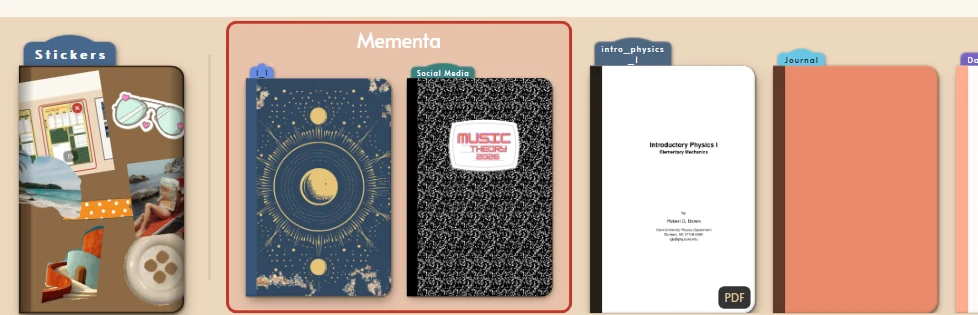
In many apps, stickers are a short strip of clip art, or files you hunt down again every time. In Mementa Notebook, the Sticker Book is a book of its own, pinned to your shelf beside your notebooks. Open it and every sticker you own is laid out in a gallery, each at its natural shape, so a tall character, a wide banner and a tiny icon are all easy to recognize. It feels less like a file manager and more like opening a collection.
To open it, look for the cover marked Stickers in the shelf row along the bottom of the carousel on your home screen.
Keep it straight
- Chapters are a sticker's main home: Travel, Birthdays, Botanicals.
- Groups add one level above chapters: Seasons over Spring, Summer, Autumn and Winter.
- Tags connect a sticker to many ideas: flower, border, label, blue.
- Unsorted catches everything you have not filed yet, so nothing gets lost.
- Search matches names and tags.
Chapters show how many stickers they hold, and you can rename, reorder, nest, collapse and delete them. Delete a chapter and its stickers move to Unsorted instead of disappearing. Edit mode lets you move, tag or delete a batch of stickers at once, and the tags you use most are suggested first.
Each notebook carries what it needs
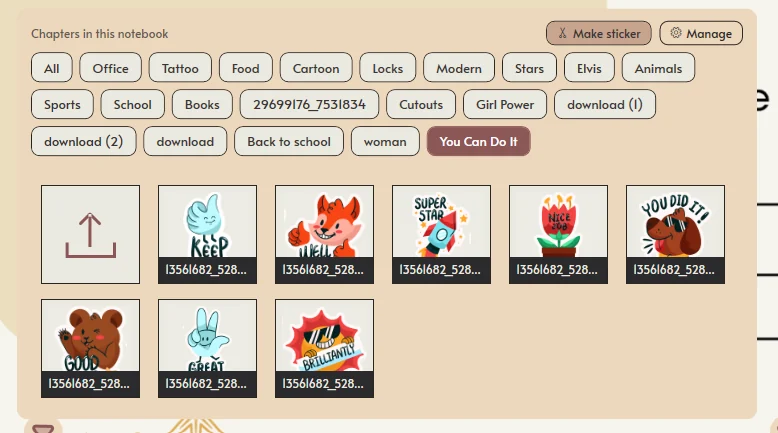
The Sticker Book is shared: import a sticker once and every notebook can use it. But a travel journal does not need your Christmas stickers in its drawer. Each notebook can choose which chapters show in its sticker dock, so the travel journal loads Maps, Tickets and Landmarks while the recipe book loads Ingredients and Kitchen. Leave the choice empty and every chapter is there.
Place it, then make it fit
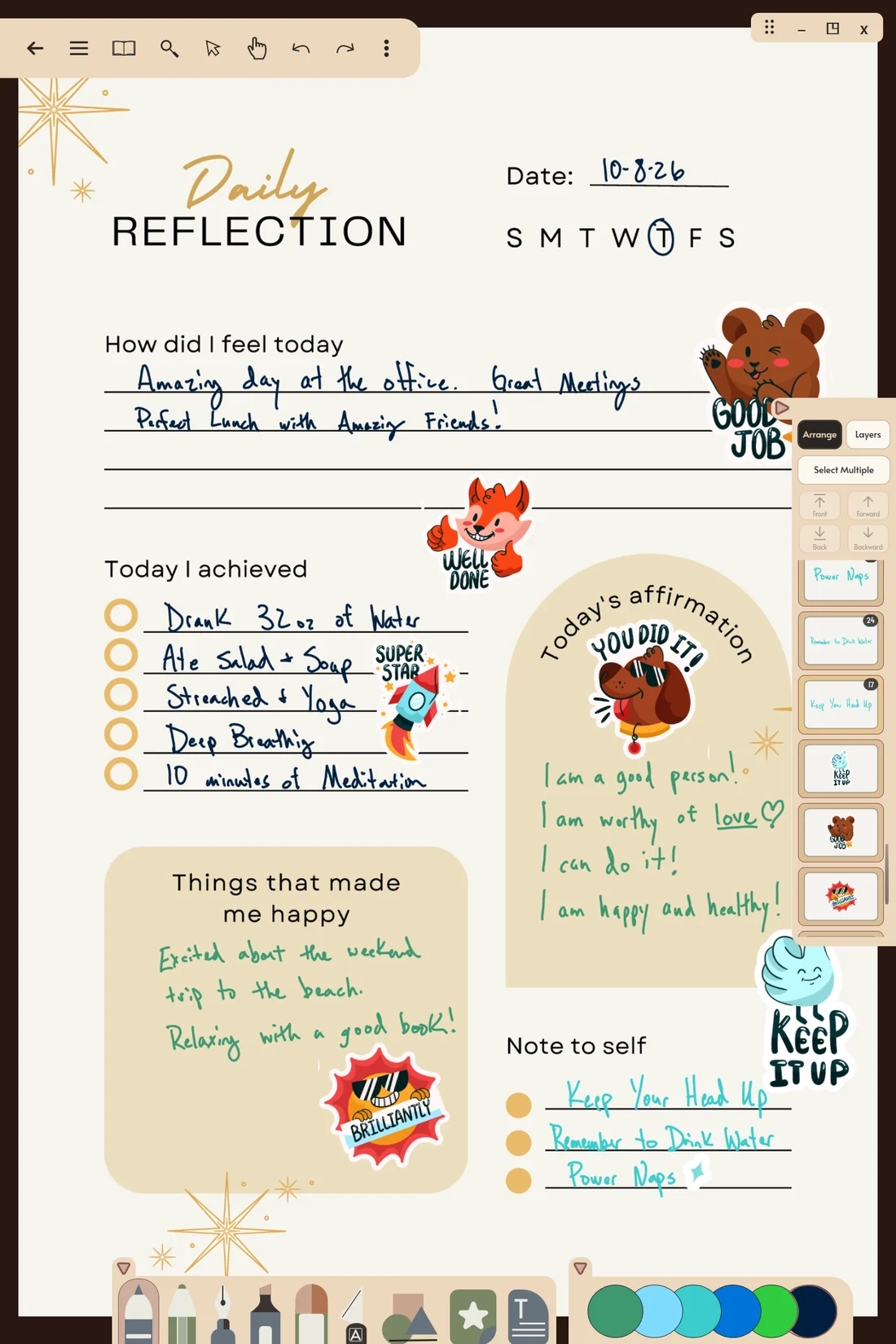
Tap a sticker to place it, or drag it onto the page. Once placed, it moves, resizes, rotates, copies, and takes its own transparency. Double-tap to crop it without losing the rest.
When you share a notebook as a portable file, only the stickers it actually uses go with it. A big collection never makes a shared notebook huge.
Where stickers come from
Peel them from packs you own with automatic sticker peeling, make them from your own drawings, or cut them from photos with the Knife. Mementa does not come with sticker packs or a sticker store.
Sticker artwork shown on this page is designed by Magnific and appears for illustration only. It is not included in the app. You bring your own sticker packs.
At a glance
- Chapters, one level groups, tags, an Unsorted bin and search
- Rename, reorder, nest, collapse and delete chapters, with a count on each
- Batch move, tag and delete
- A justified gallery that respects each sticker's natural shape
- Per notebook chapter loadouts, so the dock holds what this notebook needs
- Tap or drag to place a sticker on the page
- Add in the sticker drawer opens the Sticker Book over the notebook, and Back returns to the same page with the new stickers in the drawer
- The sticker drawer narrows to one chapter or Favorites from a Chapters dropdown, with a count on each
Questions
How do I organize digital stickers?
Give each sticker a chapter, add tags for the ideas it fits, and use search. Groups let you nest related chapters one level deep.
Can I use the same sticker in every notebook?
Yes. The Sticker Book is shared by every notebook, and each notebook chooses which chapters it shows.
Does Mementa have a sticker store?
No. Your Sticker Book holds the stickers you bring and the ones you make.
Try it yourself
$4.99 once, and Mementa is yours. Every update included, and no subscription, ever.
Get it on the Microsoft Store