
10 best note-taking apps for students on Windows in 2026
Microsoft OneNote is my first recommendation for most students on Windows who need both typed and handwritten notes across devices. Mementa Notebook 2.0 suits pen users who want a Windows 11 notebook with a one-time price. Xournal++ is worth considering for PDF coursework, Notion for organizing assignments, and Obsidian for connecting typed study notes. The best choice depends on how you study and where you need your notes.
Your lecture notes are on the laptop, the reading list is in a browser tab, and you want to check one formula on your phone. A good notes app should make that routine easier. Which app helps depends on whether you mostly write by hand, type, mark up PDFs or work with classmates.
I make Mementa, and I'd still recommend different apps for different classes. Working through equations with a pen asks something different of a notebook than planning a group assignment. I've compared these ten apps using their published features and pricing, looking at what each would help you get done during a semester on Windows.
Find your starting point
Jump to any app for its image, recommendation and tradeoffs. The table scrolls sideways on a phone.
| App | Best for | Cost | Phone app | Main tradeoff |
|---|---|---|---|---|
| Microsoft OneNote | Most students, as the place to start | Free; extra cloud storage costs more | Yes | 5 GB of free storage, shared with OneDrive |
| Mementa Notebook | A Windows pen notebook with a one-time price | $4.99 once | No | Windows 11 only; no built-in sync |
| Microsoft Journal | A free notebook centered on handwriting | Free | No | Built for the pen, not long typing |
| Xournal++ | PDF worksheets and technical coursework | Free and open source | No | Keep the project and its PDF together |
| Saber | Open-source handwriting across devices | Free and open source | Yes | Set up a sync account and encryption |
| Notion | Assignments, deadlines and group projects | Free plan; Education Plan for eligible students | Yes | Prepare pages for offline use |
| Obsidian | Connecting typed study notes | Free; optional Sync from $4/month billed yearly, 40% off for students | Yes | Choose and configure a sync method |
| Goodnotes for Windows | Handwritten notes with ready-made templates | Free up to 3 files; Essential $11.99/year | Yes | Syncing with an iPad needs Pro |
| Nebo | Turning handwriting into typed text | $9.99 once | Yes, sold separately | No new features coming on Windows |
| Joplin | Collecting research alongside typed notes | Free; optional Joplin Cloud from €28.69/year | Yes | Configure a sync provider |
How I chose these apps
OneNote comes first because it covers the broadest mix of student needs. Mementa comes second because I make it and want you to see it early, so judge it by the same tradeoffs as every other app here. After that, each pick fits a particular way of studying, and the numbers only help you find them; a higher number doesn't mean an app is worse for your course.
I compared input style, access on other devices, handling of coursework, and the cost of the workflow being recommended. Some apps are free, two are paid once, and others charge for extra storage or sync. A subscription can be worth it when you need what it provides. Prices and plan details were checked on 3 November 2026, in US dollars where quoted, except Joplin Cloud, which is priced in euros.
The ten picks
Microsoft OneNote
Best starting point for most students
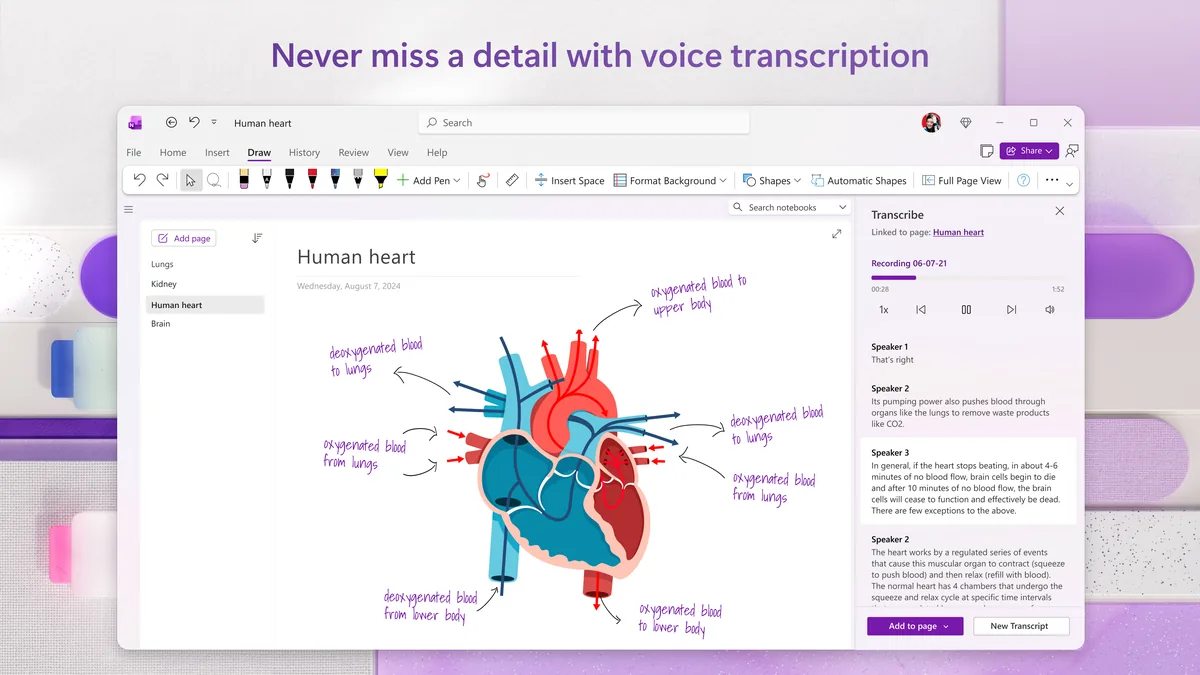
If you type through one lecture and draw diagrams in the next, OneNote is a practical starting point on Windows. You can put ink and typed text on the same page, then organize each course into a notebook with sections for lectures, reading and revision. The same notebooks open on your phone, a Mac or the web. I'd start here if your classes need a mix of keyboard notes and pen work.
The flexible page is its main strength. A diagram can sit beside the explanation instead of being squeezed into a line of text. On a Windows PC with pen input, that gives you room to work through a problem by hand while keeping the typed lecture notes beside it. If you mostly use a keyboard, the notebook and section structure is still useful for keeping classes separate.
Worth knowing: The tradeoff is the cloud account and its storage allowance. A free personal Microsoft account includes 5 GB shared with other OneDrive content and Outlook attachments. Check that allowance before filling notebooks with large lecture files. If your school gives you a Microsoft 365 account, OneNote works with that too, but Microsoft says services tied to a school email stop working once you're no longer eligible. Move the notebooks you want to keep before you graduate.
Cost: Free for core note-taking. Additional storage and some premium features cost extra. Explore OneNote.
Mementa Notebook
Best for a Windows pen notebook with a one-time price
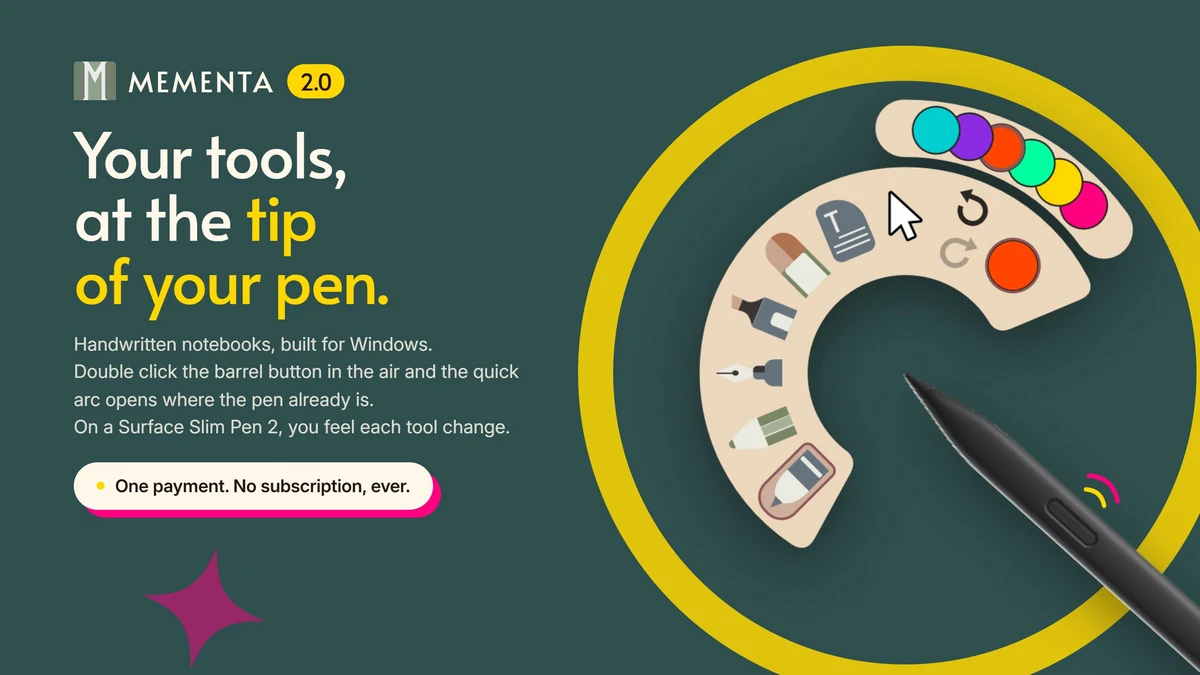
On a Windows pen tablet, Mementa lets you take handwritten class notes and work through lecture PDFs in the same app. Write on your lecture slides with your pen: the PDF becomes a notebook, and your original file is never changed. You can add the lecturer's explanation beside a diagram or work through a calculation on the page you'll revise from later. See how to take handwritten class notes in Mementa.
Search your whole library from the main menu, including handwriting. Before an exam, that lets you look up a term from class instead of opening each notebook to hunt for it. Your work stays on your device. I'd choose it for a student who wants to keep handwritten notes and annotated course material together on one Windows PC.
Worth knowing: Mementa is available for Windows 11 today. I'm also building an Android app, which isn't available yet. There's no built-in sync or lecture audio recording. Moving a notebook to another PC means transferring its file. Links inside imported PDFs don't jump, so a linked planner loses that navigation.
Cost: $4.99 once, and Mementa is yours. Every update included, and no subscription, ever. A 7-day free trial is available through the Microsoft Store.
Microsoft Journal
Best for a free notebook centered on handwriting
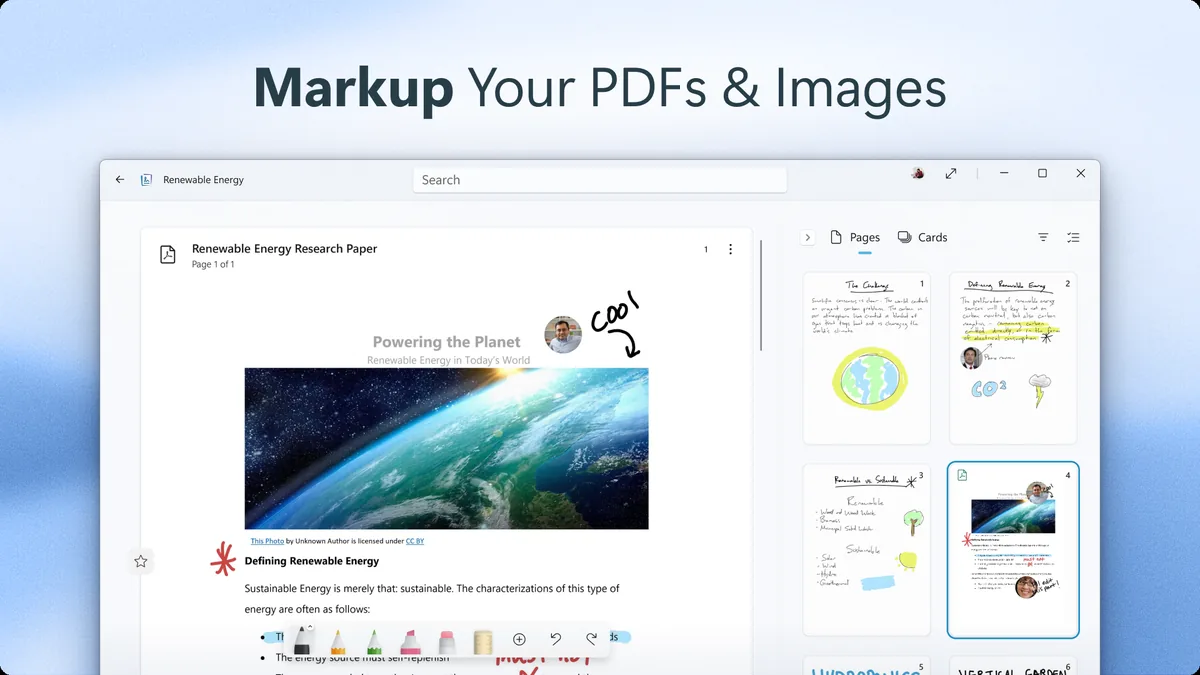
Microsoft Journal is the free option I'd try for handwritten lecture notes on a Windows pen tablet. It gives you a page-based canvas and lets you bring in PDFs or images to annotate. You can work through a worksheet or add explanations to a lecture handout without moving the material into a separate typed document.
Its useful distinction is how it treats the marks you already make. Underlined headings and starred passages become ways to find things again. For a student who naturally marks important definitions or exam topics with a pen, that gives the notebook some organization without needing to type a second set of notes.
Worth knowing: Journal is centered on pen input, built for writing, sketching and annotating by hand on Windows. If long typed passages are a large part of your coursework, I'd consider OneNote first.
Cost: Free from the Microsoft Store. Explore Microsoft Journal.
Xournal++
Best for PDF worksheets and technical coursework
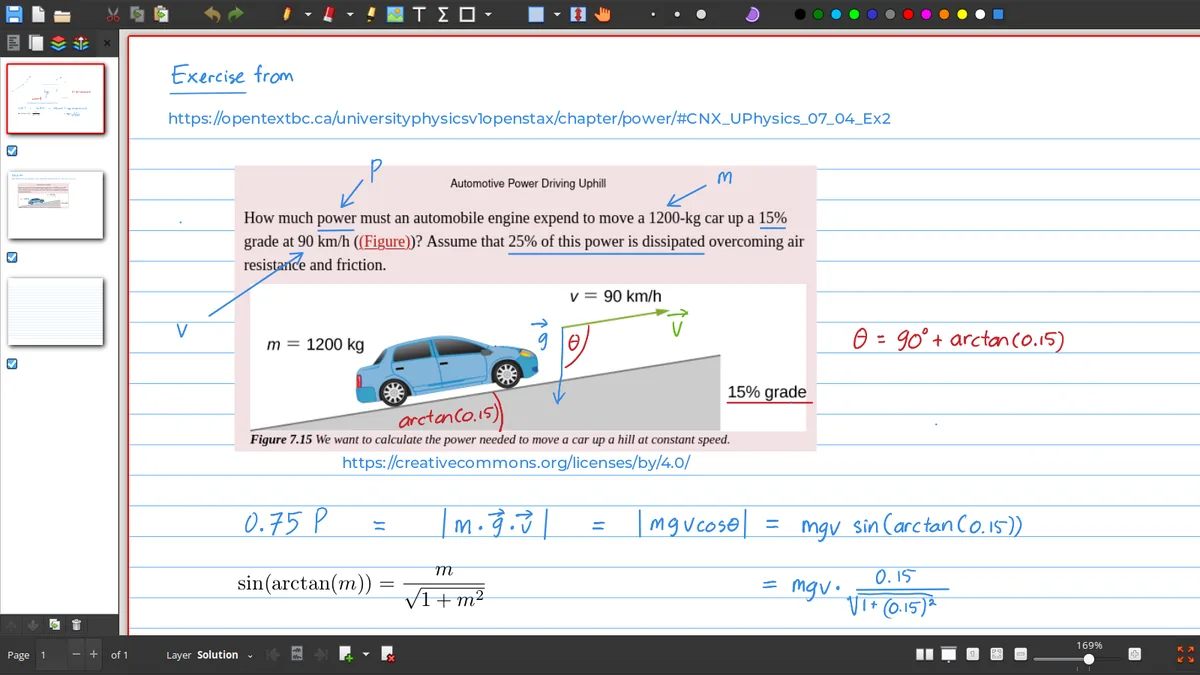
Xournal++ is a strong Windows option when most of your note-taking starts with a lecturer's PDF. It uses the PDF as a notebook background, so you can write solutions over a problem sheet or add explanations to a slide deck. Pressure-sensitive pen support, layers and a LaTeX editor for typeset equations make it particularly useful for technical coursework.
I'd put it ahead of a general workspace for a student who spends more time working through handouts than managing task boards. On a Windows PC with a pen or drawing tablet, the appeal is having the question and your working on the same page. Exporting the result as a PDF gives you a readable copy to submit or share.
Worth knowing: The editable notebook is an .xopp project, separate from its background PDF. Moving the project without the PDF can break that link. Keep both files together, or use the documented attach mode; export a PDF when you want to hand someone a readable copy.
Cost: Free and open source. Explore Xournal++.
Saber
Best for open-source handwriting across devices
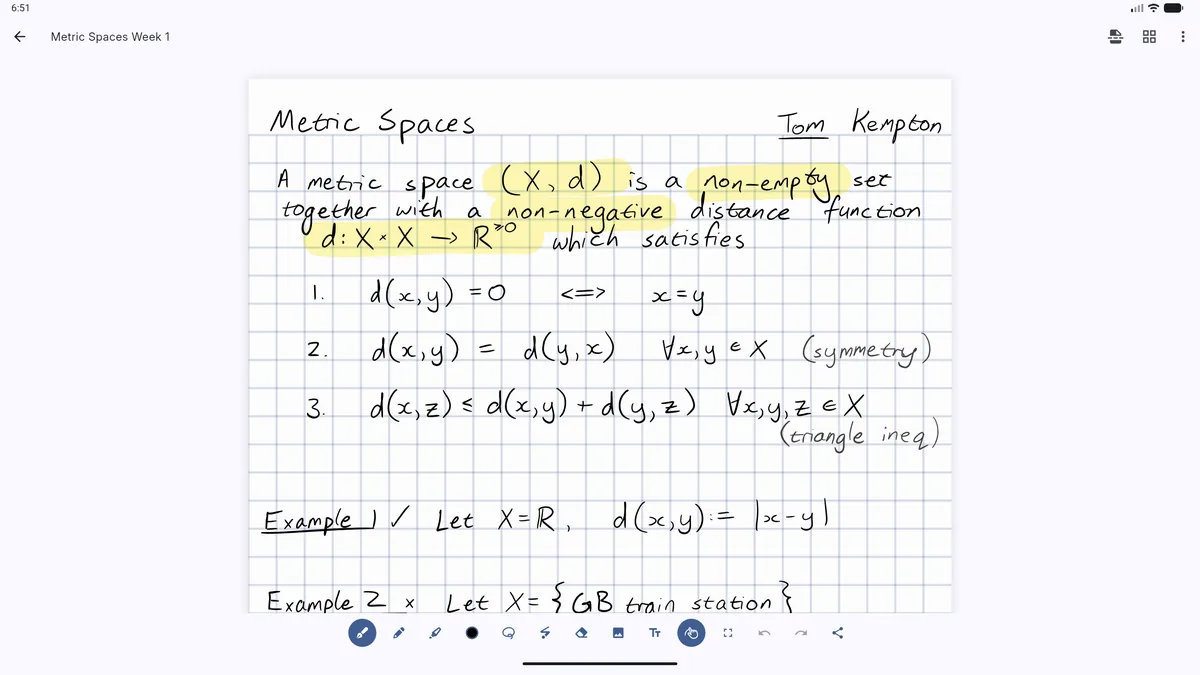
Saber is a free, open-source handwriting app for a Windows pen tablet that also runs on Android and iOS, so with sync set up, the notes you write in class come with you on your phone. It also gives each course a clear place: its folders can contain more folders, so lectures, tutorials and revision notes can sit under the same subject. That structure is useful once a semester grows beyond a few notebooks.
Its highlighter is a thoughtful detail for math-heavy pages. It sits underneath the writing and doesn't get darker where strokes overlap, so a highlighted equation stays readable. For a student who fills pages with calculations and definitions, I'd value that everyday writing detail more than a long list of extra workspace features.
Worth knowing: If you use Saber's encrypted sync, setup involves an account and separate encryption credentials. You can use the official server, another compatible server or your own. Keep those credentials safe before relying on sync for your coursework.
Cost: Free and open source. Explore Saber.
Notion
Best for assignments, deadlines and group projects
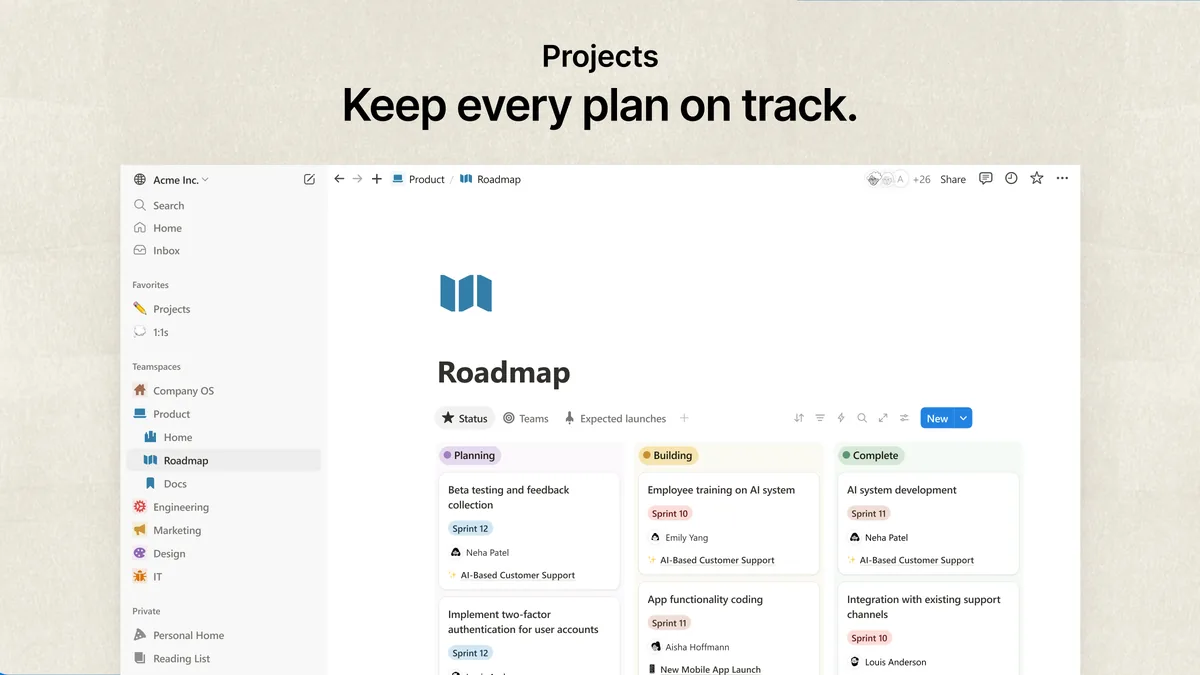
Notion is the Windows app I'd choose for organizing the semester around typed notes, assignments and project work. Course notes can sit beside deadlines, reading lists and project boards. On a laptop, that gives you somewhere to plan the work as well as write it, instead of keeping the timetable in one place and the notes in another.
A shared page is useful for a group assignment: classmates can collect research and project notes in the same workspace. Notion fits courses where the difficult part is tracking what needs doing and keeping the material together. For handwritten equations or diagrams, I'd choose one of the pen-focused apps instead.
Worth knowing: For offline study, download the pages you need in the Windows desktop app, including important subpages. The free individual Education Plan is for a one-member workspace at an eligible college or university; it isn't a blanket free team plan. You verify it with your school email once a year, and high school students and teachers aren't eligible.
Cost: A free plan is available. Eligible students and teachers can get the individual Education Plan free, subject to verification. Explore Notion for education.
Obsidian
Best for connecting typed study notes
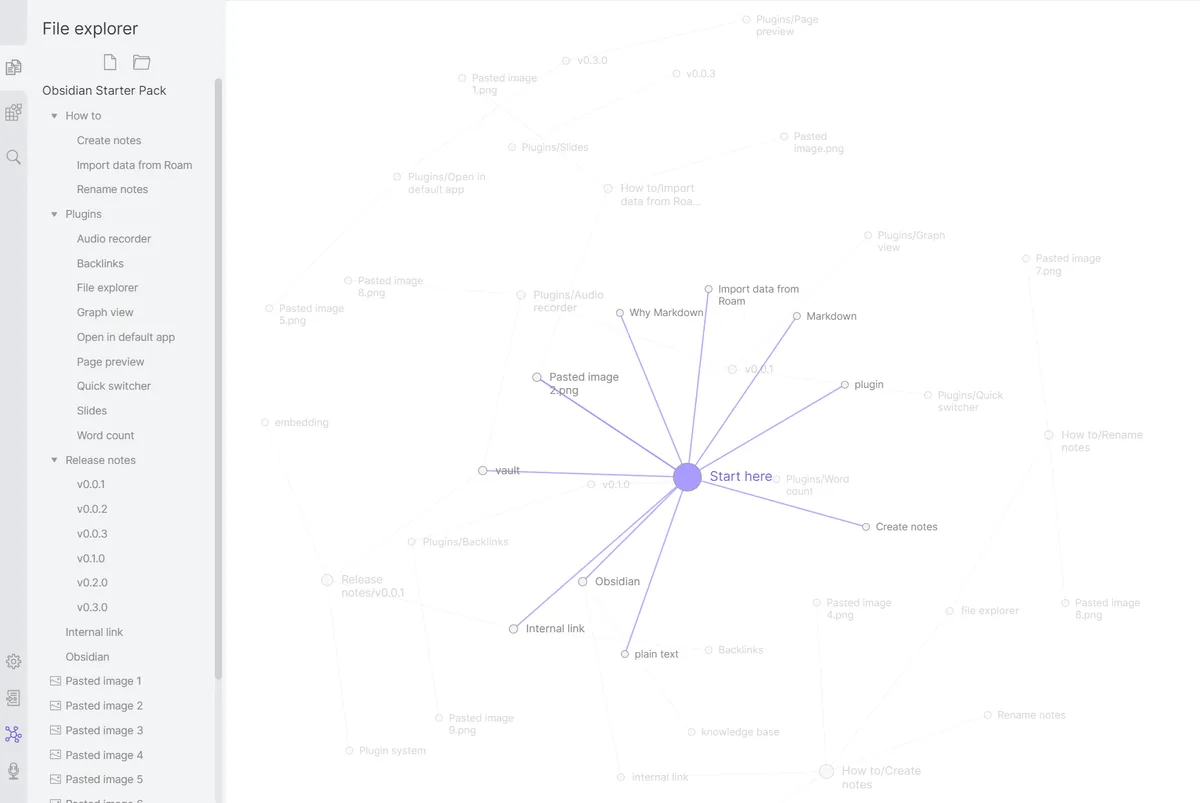
Obsidian makes sense for a student typing study notes on a Windows PC who wants to connect ideas across lectures. Link this week's concept to an earlier definition, then follow those links while revising. The graph in the image is one way to see the connections, but the links themselves are the reason I'd choose it for a course that builds on earlier material.
Your notes are Markdown text files in a folder on your PC, so the writing remains readable in other text editors. That's a practical strength if you want to keep using your notes after the course ends. I'd begin with lecture notes and a few useful links, then add community plugins only when there's a job you need them to do.
Worth knowing: Obsidian isn't a built-in handwriting notebook. If your classes depend on drawing diagrams or working out equations with a pen, I'd use a pen-focused app for those pages. Obsidian's own Sync is an optional subscription, separate from the free Windows app.
Cost: The app is free. Obsidian Sync starts at $4 per user per month billed annually, or $48 per year. Students get 40% off Sync. Explore Obsidian.
Goodnotes for Windows
Best for handwritten notes with ready-made templates
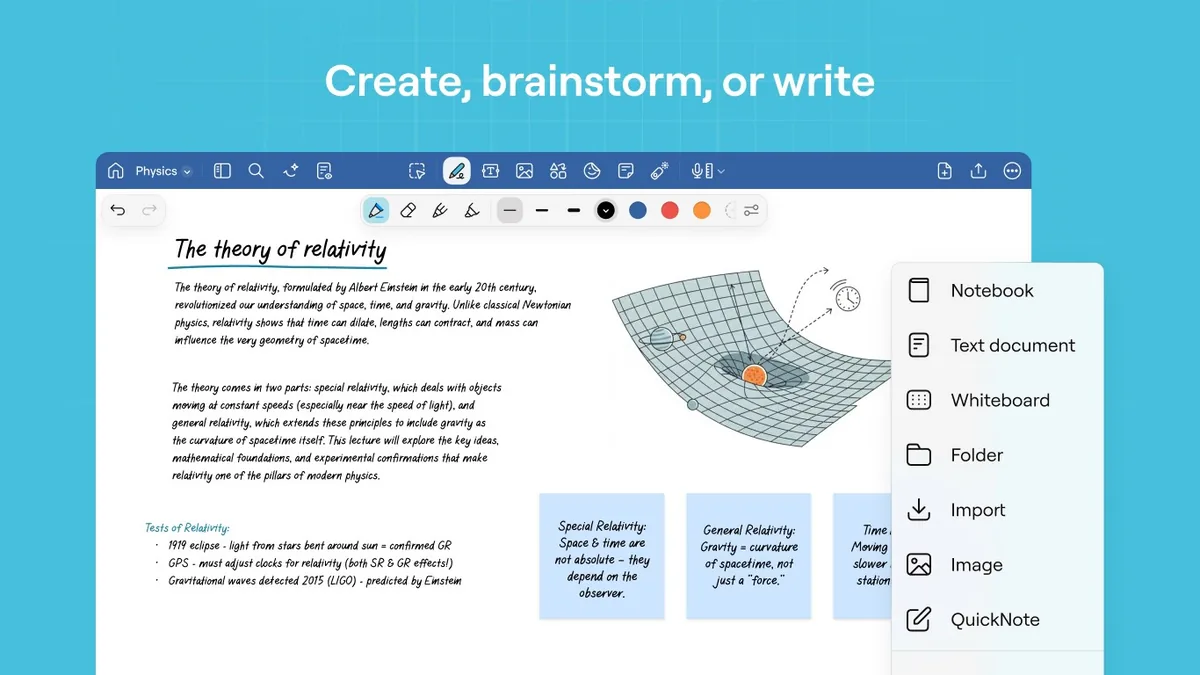
Goodnotes for Windows suits you if you want handwritten course notebooks with ready-made page templates. It combines handwriting and PDF annotation, so you can take a lecture's notes in a notebook or write directly over the supplied slides. I'd consider it for a Windows pen tablet when keeping a consistent page layout matters to your study routine.
Templates give you a starting point instead of a blank page to organize before class. For a student who likes a structured notebook, that's a useful reason to try it. Try a real lecture PDF with your usual pen on the Windows version before deciding whether its writing tools suit you.
Worth knowing: The free plan allows up to three files and 5 MB imports. Check that limit against the size of your lecture PDFs and the number of course notebooks you need. If your notes already live in Goodnotes on an iPad, syncing that library with Windows needs Pro. The Windows app doesn't have every iPad feature yet, so check the Windows feature list before choosing a paid plan.
Cost: Free with limits. Essential is $11.99 per year. Pro is $35.99 per year. Explore Goodnotes for Windows.
Nebo
Best for turning handwriting into typed text
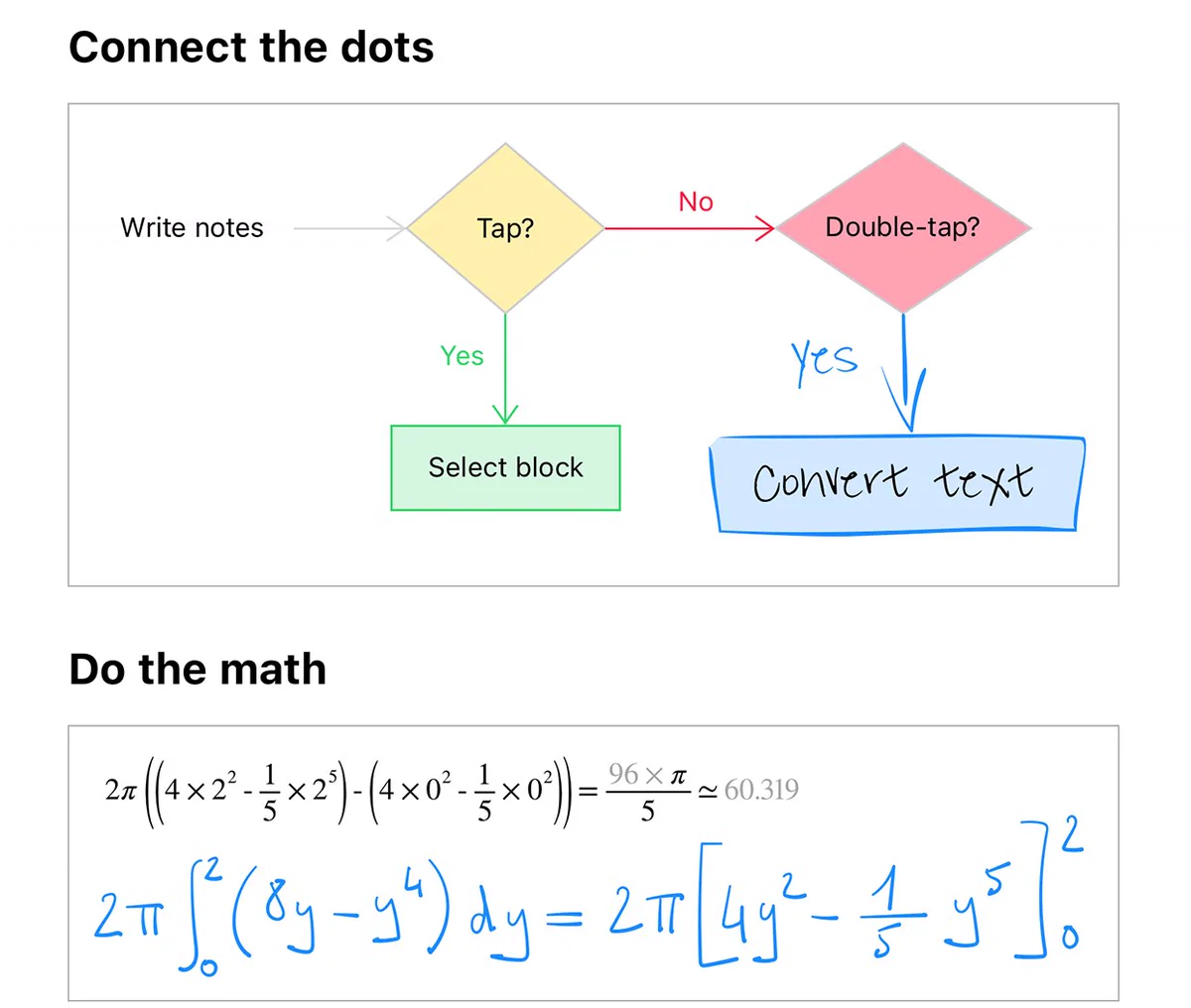
Nebo converts your handwriting into typed text, which suits a student who wants to write by hand in class and still end up with typed notes. Handwritten math converts too, and hand-drawn diagrams become clean shapes, as in the image. You can also import a lecture PDF and annotate it, and it reads handwriting in 66 languages.
The conversion is the reason to pick it over the other pen apps here. A page you wrote during a lecture can become a typed outline for an essay or a study guide without retyping it. Try it on a page of your own handwriting before you rely on it for exam notes.
Worth knowing: MyScript says Nebo on Windows remains fully functional, but no new features will be added to it. On iPhone, iPad and Android it became MyScript Notes, which is sold separately. Your notes stay in sync between the two with the same MyScript account, but the free version of MyScript Notes doesn't include cloud sync.
Cost: $9.99 once in the Microsoft Store, which also offers a free trial. MyScript Notes on a phone or tablet is a separate monthly, yearly or lifetime purchase. Explore Nebo and MyScript Notes.
Joplin
Best for collecting research alongside typed notes
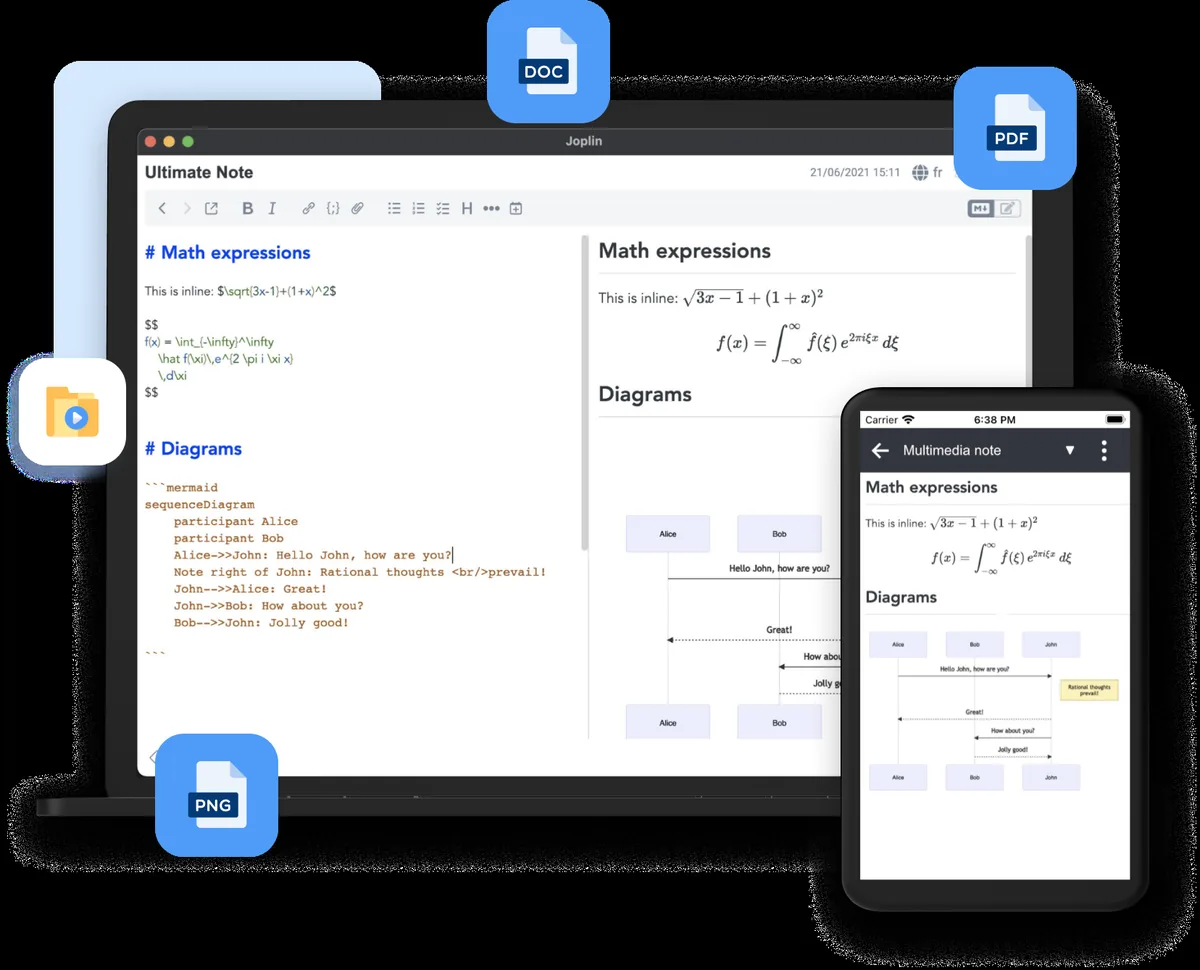
Joplin is my pick for collecting source material and writing research notes on a Windows laptop. Its browser clipper saves web pages and screenshots into your notes, which is useful when an essay sends you through dozens of online sources. You can keep the material you've collected alongside your own explanations instead of relying on a long row of browser tabs.
Rich text and Markdown editors give you a choice of writing style. It suits a practical research workflow: gather the sources, write your notes and keep them organized while the assignment develops. Dropbox, OneDrive and the optional Joplin Cloud service are available if you also want to sync that work.
Worth knowing: Joplin is a better fit for typed coursework than handwritten lecture pages. If you enable sync, you'll need to choose and configure a service, and your notes count against that service's storage.
Cost: The app is free and open source. Joplin Cloud is optional and paid, from €28.69 a year on the Basic plan; Dropbox and OneDrive have their own storage allowances. Explore Joplin.
Try one lecture before you switch
Before moving a semester of work, put one real lecture through your shortlist. Import the handout, take notes the way you normally would, find a passage again and export something a classmate can open. If you study on your phone, open that same note there too. You can run this test without paying: eight of these apps are free or have a free plan, Mementa has a 7-day trial through the Microsoft Store, and the Store offers a free trial of Nebo too.
Try this in the place you'll study: the lecture hall, the library or the train. Download anything you need offline before disconnecting. That small rehearsal will tell you more than another hour comparing feature lists.
Sources and image credits
Plans, prices and features checked on . Each image comes from its maker and is credited beneath it; images show the apps and don't promise the same features on every platform. The Mementa clip was captured by ICI.
- Microsoft Journal
- HelpStore listing
- Saber
- FeaturesSync setup
- Goodnotes
- Windows featuresPlans and sync
Try Mementa Notebook
$4.99 once, and Mementa is yours. Every update included, and no subscription, ever.
Get it on the Microsoft Store